
Classification
Categories, locations, conditions, lists and keywords: create, rename and merge them without losing anything.
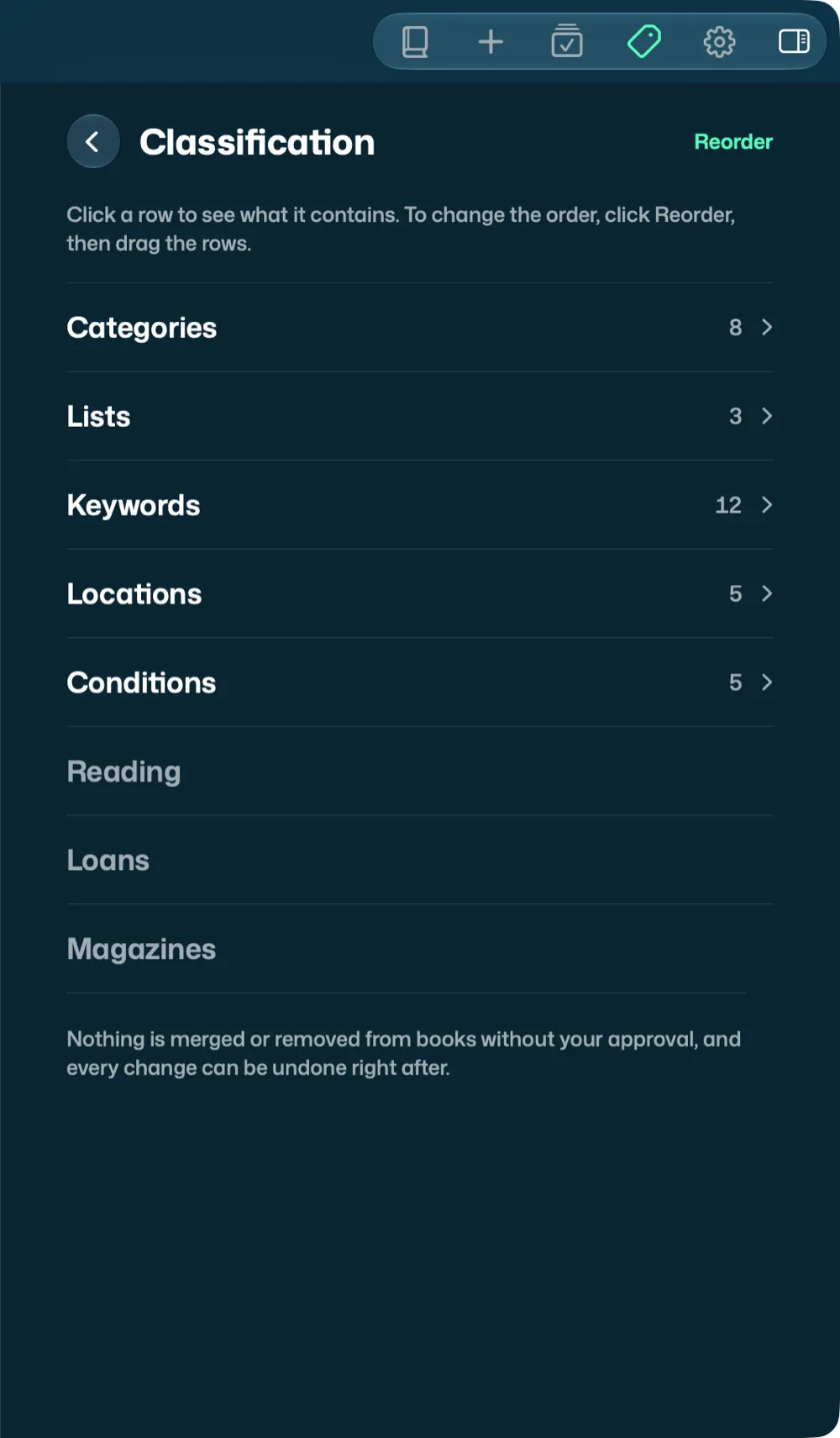
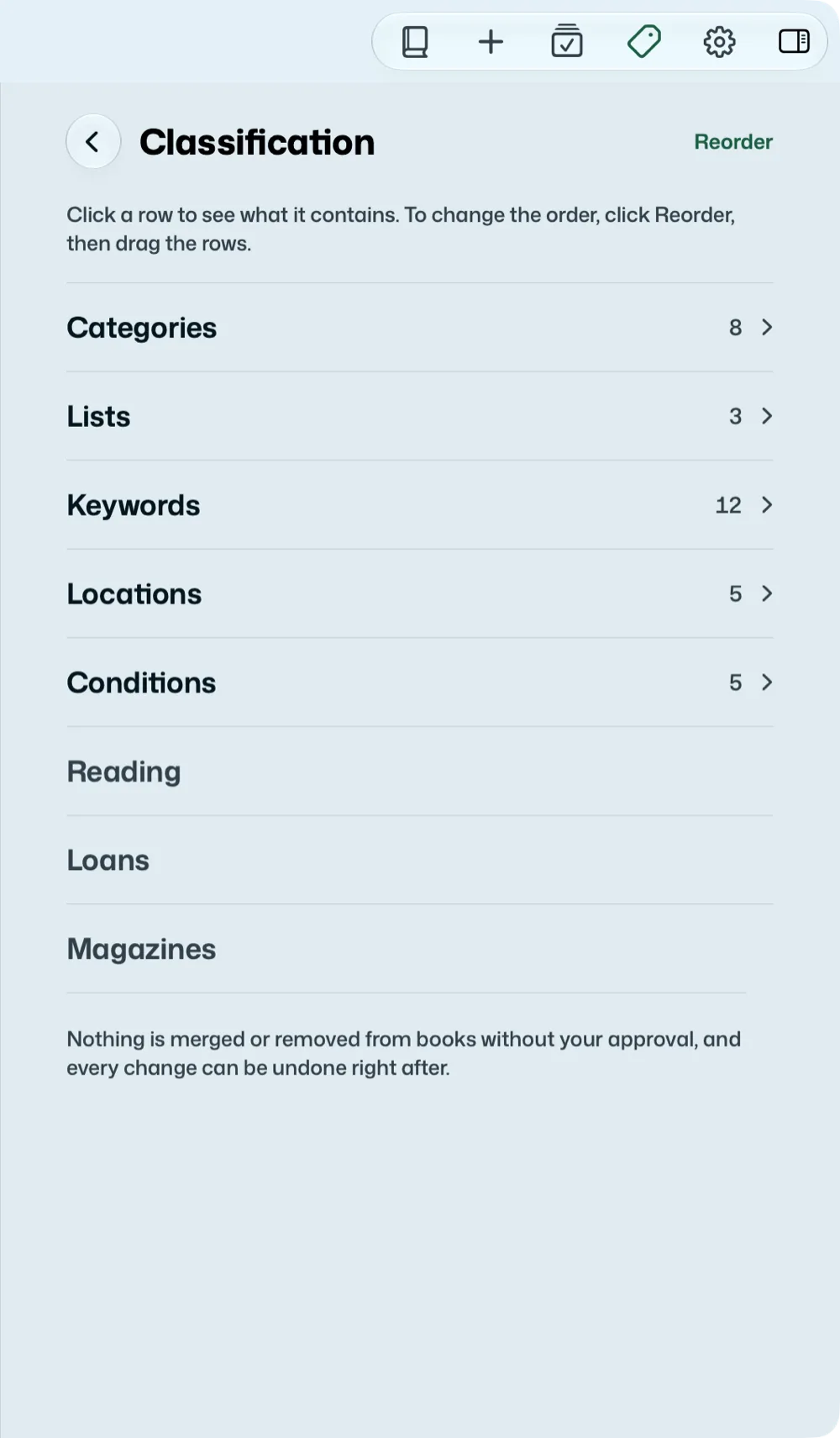
Classify on the iPhone, Classification on the Mac (⌘3). The page first shows the five kinds of values, with the number of each:
- Categories, and their subcategories: two levels, no more.
- Locations: the room, the shelf, the box.
- Conditions: new, good, worn…, in the order you give them.
- Lists: a yes or no on each book: “Precious” (the diamond’s), “Loved” (the heart’s), created on their first click, or your own. No list exists at the start.
- Keywords: as many as you like per book.
What you have read is not a list: it is the reading, set from the record on the Mac.
Inside a kind
Each value on a line, with its number of books. The chevron at the end of a category unfolds its subcategories. The + at the top adds a value; it is then offered in the records, even with no book.
Tap a line: the area that edits it opens right below.
- Name: rename; all the books follow. Give the name of a value that already exists, and the two are merged.
- Move to… (categories and subcategories): a subcategory under another category, a category under another (it becomes a subcategory), or “None: make it a category”.
- Delete… unfolds the question: how many books are filed here, and where to put them.
- Save does it all at once; Cancel puts the line back as it was.
On the Mac, right-clicking a filter in the sidebar, Rename… or Delete…, opens the value here.
A value in reserve stays there when it is renamed, merged or moved; ⌘Z puts it back as it was, along with the rest.
Suggesting keywords
With an AI set up, the Keywords page starts with Suggest Keywords…. Choose the books without keywords, or all of them: the AI reads them two at a time (title, authors, summary, magazine contents) and suggests a few keywords for each, from yours first. Stop pauses it when you have enough.
Suggestions arrive book by book: those your library already knows are ticked, the new ones (“new”) are not. Tap one to tick or untick it. Nothing is saved before Add 12 keywords to 8 books; right after, Undo removes exactly what was just added.
On the Mac, Book > Suggest Keywords… (and the right-click) does the same for the chosen books. For a single book, the sparkles in its record are enough.
Changing the order
Reorder, on the Classification page and inside each kind: a handle appears at the end of the lines, drag them where you want. Done saves, Cancel forgets everything, and “Alphabetical order” or “Default order” brings back the starting order. On the first page, this is the order of the sections in the sidebar; inside a kind, the order of its values. It applies everywhere: the Mac’s sidebar, the iPhone’s filters, the groups in the library. You don’t drag a line directly: a sentence at the top of each page says so (“Tap a row to see what it contains. To change the order, tap Reorder, then drag the rows.”; “Click” on the Mac).
On the Mac: View > Reorder Sidebar…, or Reorder… when right-clicking a line or a section title. Loans only appear there if a book is on loan.
Nothing is lost without you
Before merging two names, deleting a name that has books or moving a category that has its own subcategories, Couvertures says how many books are affected and asks what to do with them (keep their subcategories, or merge everything). After each change, Undo puts everything back.