
Adding books
Scan, photograph, dictate: the ways to add, from the surest to the freest.
Everything starts with Add: the iPhone tab, or the Mac panel (⌘N). First say where these books go, under “These books go in…”: a location (“Box 4”, “Living room”), and if you like a category, a condition, keywords. Every book added during the session gets them; you can change them book by book when reviewing. These values are kept from one session to the next: on the iPhone, the ✕ at the end of a field clears it.
As you type, values already in use are suggested: on the Mac, in a list under the field (↓ then Return); on the iPhone, as a few words under the field, to tap.
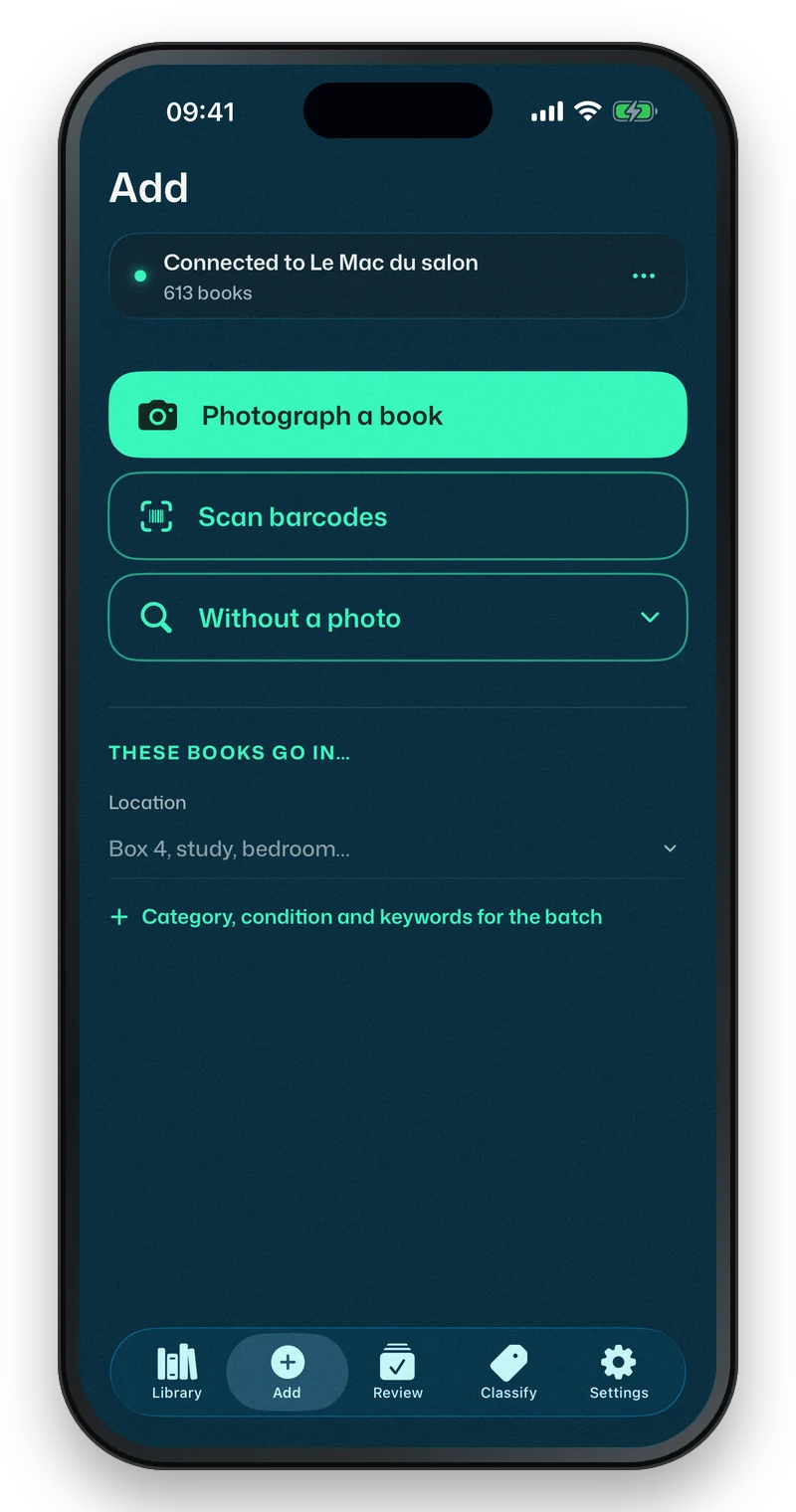
On the iPhone
At the top, on the iPhone and the iPad, a bar says what you are adding: Books, Movies or Music. It takes the kind the library is showing. On Movies, the first button becomes “Photograph a movie” (the front of the case), the batch “These movies go in…”, and Without a photo and dictation look for a movie; on Music, an album. The scanner does not need it: the barcode says what it is (see Discs).
Four buttons, from the fastest to the freest:
- Photograph a book. The camera opens; photograph the books one after another, each photo goes off for analysis at once. A counter says how many books this session; “Torch” keeps the flash on; “Done” closes. Surest: the back of the book, when it has a barcode. Couvertures reads it directly, without AI. Otherwise the whole cover, flat, without glare: the AI reads the title and the author. At the bottom, “Cover” and “Back cover”: once the cover is taken, the screen moves to the back of the same book, and the cover goes off with its text; tap “Cover” to move on to the next book without the back (see The back cover).
- Choose photos. For books you have already photographed: your photo library opens, select as many photos as you like, then the checkmark at the top. Couvertures only sees the photos you select, and asks for no permission. One photo, one book, as on the Mac; the photos join the current batch. “Reading photos: 3 of 12” while they are read, then “Review” takes you to the suggestions. Photos on a drive or in iCloud Drive: “or in Files”, just below. Choosing the same photo twice gives two books to review.
- Scan barcodes. Aim at the barcode on the back, from about fifteen centimetres; a beep, and the book goes off to be looked up while you move to the next. At the bottom, the list of scanned books with their state: “Looking for the book…”, “Cover found.”, or “No cover”, with a camera icon: the cover, if none was found online, then the back cover, on the same screen. A book nobody knows, “Book not found online”, waits for your answer at the top of the list: Add anyway or Cancel; if you close without answering, it goes to Review. When a source did not answer, the round arrow Try again. If you already own this book, the line says “Already in your library” and offers Add anyway for a second copy. Done opens Review, where the scanned books are waiting. If the library lives on the Mac, away from it the codes wait on the iPhone and go on your return: see The iPhone away from the Mac.
- Without a photo. Unfolded when Add opens, without the keyboard: tap the tile to type. A title, an author or an ISBN, “Search”, then “Add” on the right result: the book goes straight into the library, without passing through Review. If nothing fits, “Create a record” with what you typed.
The scanner reads ISBN barcodes, the ones starting with 978 or 979: on a book that has two, aim at that one. It also reads magazine barcodes, and their issue number (see Magazines), and those of DVDs and CDs (see Discs).
The back cover
When you photograph a book (in the scanner, one after another with “Photograph a book”, on its card in To review or with ”…” on the record), “Cover” and “Back cover” follow each other on the same screen, at the bottom. A kept photo ticks its button and the screen moves to the other; once both are taken, it closes; “Finish” closes it at any time.
- The cover: Couvertures finds the book in the photo and straightens it. Crop adjusts the frame, Keep the photo keeps it.
- The back: the iPhone reads its text itself, without AI or network, and frames its paragraphs on the photo. The main text is chosen already; a title, a lone name or a notice are not. Tap the paragraphs to keep or drop them (the author’s biography, a press quote). A back in two columns is read column by column. Edit opens the chosen text to correct a misread letter, Keep This Text keeps it. The photo of the back is not kept.
The text joins the record, next to the summary found online, which stays. Search reads it, and so do the keywords the AI suggests. For a DVD or a CD, it is the back of the case.
Dictating titles
In “Without a photo”, the microphone on the right of the field opens dictation (it only shows with an AI set up; the first time, the iPhone asks for the microphone and speech recognition). Say the title, the author or the publisher in your own words (for a movie, its title; for an album, the title then the artist), then “Next”, and the next book. The AI understands the sentence and repairs misheard names; each title goes to Review, like a photo. “Start over” redoes the current title, “Done” closes. On the Mac: File > Dictate titles (⇧⌘N).
Dictation needs an AI (see Getting started).
On the Mac
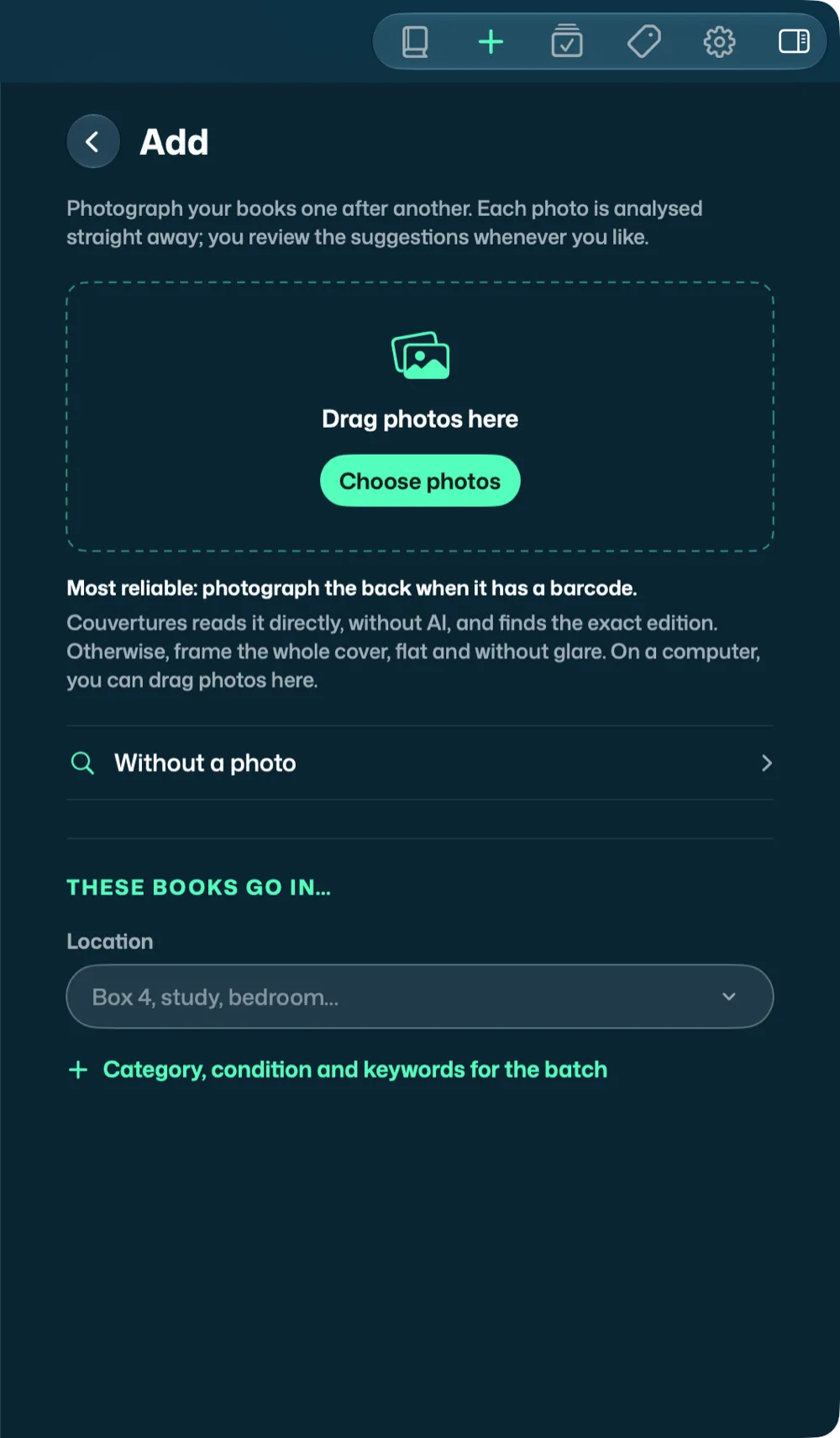
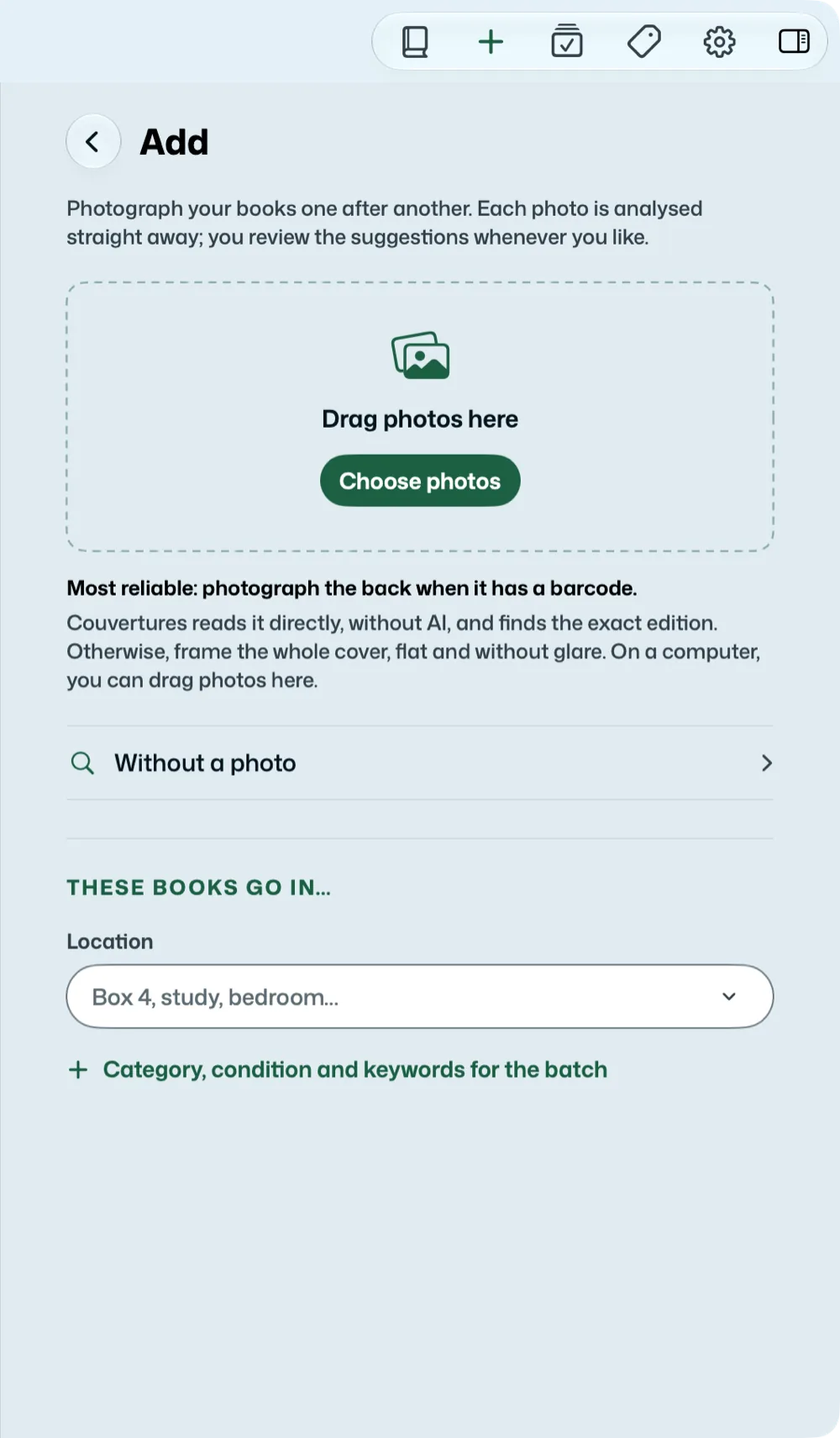
The Add panel takes photos: drag them into the dashed area, or “Choose photos”. The session’s photos show as lines with their state; “Without a photo” unfolds below, with the microphone. You can switch panels while photos are sending: a badge on the Add icon counts what is still leaving.
The photos
With an AI set up, Couvertures crops each photo around the book (Settings > Photos, “Crop automatically to the book”); without an AI, the photo stays whole. Either way, it is shrunk: 800 pixels on the long side is enough for the library, about 100 KB. You can crop by hand later, from the record or the Review card; in the same screen, “Rotate” stands a sideways photo up and “Correct the lighting” brightens a photo that is too dark: see Cropping a photo.