Getting started
Install Couvertures, choose where the library lives (the iPhone or the Mac), connect the two.
Couvertures is one app for the Mac, the iPhone and the iPad, from macOS 26 and iOS 26 onwards, for your books, your magazines, your movies (DVDs) and your albums (CDs). It is free, with no in-app purchases. During the tests, it installs through TestFlight: see Testing the beta.
Your library lives in one of two places, as you choose:
- On the iPhone (or the iPad): everything happens on the phone, and a copy is kept in iCloud Drive. No Mac needed.
- On the Mac: it keeps the library and its photos; the iPhone photographs, scans, and carries the whole library. Then start with the Mac.
You can change your mind: see “Changing places”, below.
On the iPhone alone
The first time it opens, the iPhone asks Where does your library live?
- On This iPhone: “Everything happens here: scanning, finding the books, filing them. A copy is kept in iCloud Drive. Sync can keep the same library on your other devices, Mac included.” The library opens, empty, with its five tabs; for sync, see Syncing your devices.
- On My Computer: it lives in the Couvertures app on your Mac, and the iPhone browses it on the same Wi-Fi. See “On the Mac” and “The iPhone with the Mac”, below.
The first time, on an empty library, a guided tour offers itself: a few cards, at the bottom of the screen, open Add, Review, the library (filters, the reserve), Classify, then sync and backup in turn. Set to “On My Computer”, it talks about the Mac instead. “Finish” takes you back to the library; you will find it again in Settings > “Guided Tour”, under Help. On a large iPad, each step opens its panel.
On the iPhone alone, the Settings are the iPhone’s own: at the top, “Library on This iPhone” and the number of books, then cover recognition, online sources, photos, the library and the backup. The copy in iCloud Drive happens by itself: see Backing up and exporting. The iPhone needs the Internet to look books up; without a network, a scanned book waits in Review, and its search starts again by itself: see The iPhone away from the Mac.
On the Mac
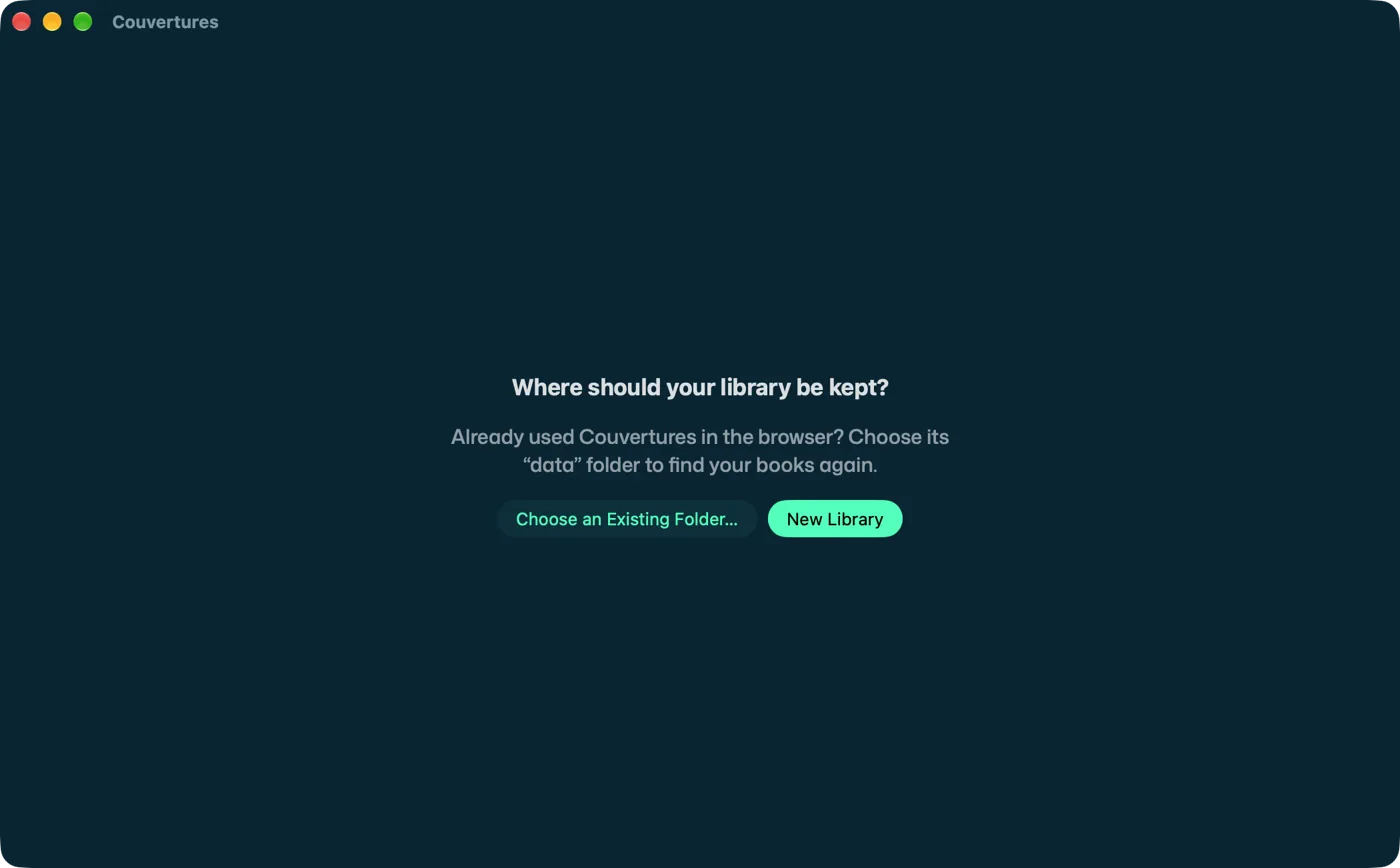
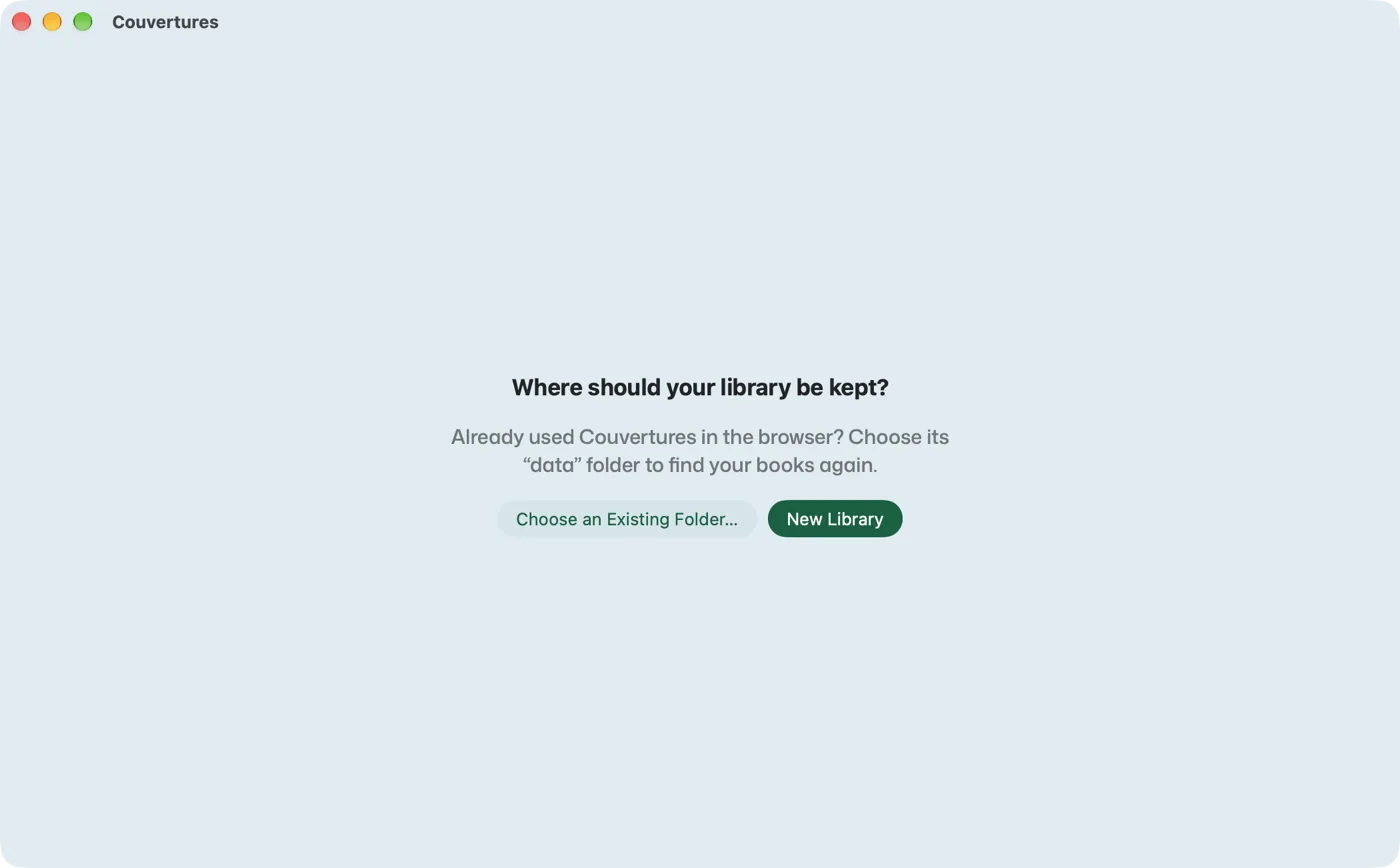
The first time it opens, Couvertures asks where your library should be kept:
- New Library creates a folder, to begin with.
- Choose an Existing Folder… picks up a library you already had, for instance the one from
the web version of Couvertures: point to its
datafolder.
Are your books already on your iPhone or iPad? Choose New Library: sync will bring them into it, from Settings (a line under the choice says so).
If macOS asks to allow incoming connections or access to the local network, accept: that is how the iPhone sends its photos.
While the library is empty, “Getting started” offers three ways to fill it; each opens its panel:
- Add books: drop in photos or search for a title, books, movies, music.
- Get the books from my iPhone: they are already in Couvertures on an iPhone or iPad; sync brings them here.
- Scan with my iPhone: on the same Wi-Fi, an iPhone set to “On My Computer” sends the Mac what it scans (see “The iPhone with the Mac”, below).
On a new library, a guided tour offers seven landmarks, in two minutes, following the path of a book: Add (books, movies or music), what reads the covers (Apple Intelligence, or an AI with your key), To review, Classification, the same library everywhere (sync), the iPhone as this Mac’s scanner, backup. Each landmark opens the panel it talks about. You can stop whenever you like and pick up again from Help > Guided Tour. After that, tips show once each, when they are useful: a photo waiting, the first book, the first magazine, 10 books, 20 books without a backup. Help > Couvertures Help sums up the app on one page.
The window has three parts: on the left, the filters; in the middle, the library; on the right, a panel chosen by the icons above it, in the order of the iPhone’s tabs: Book, Add, To review, Classification, Settings.
The iPhone with the Mac
Open Couvertures on the iPhone, connected to the same Wi-Fi as the Mac, and choose On My Computer. A welcome screen, “Getting started”, gives the three first steps; tap Find My Mac (or On This iPhone Instead, if you have no Mac). The iPhone then asks to find devices on your local network: accept, or it will never see the Mac. If you refused, the app says so, and Open Settings takes you to the switch. It looks for the Mac and connects to it: at the top of its Settings, “Connected to” its name, with the number of books. Nothing to type, nothing to scan. If it finds several Macs, tap yours.
The five tabs, in working order: Library, Add, Review, Classify, Settings.
Next time, the iPhone finds its Mac again on its own. It never connects to another one by itself: at a friend’s, it shows the Macs it found, and you tap the one you want. To switch, the ”…” menu next to the name offers Use Another Mac: the iPhone then shows the Macs it found, and waits for your choice.
If it finds nothing (a network that hides devices from each other), type, at the top of the
iPhone’s Settings, the computer’s address under “Address of the computer running Couvertures”,
for instance 192.168.1.20:3000, then Connect. On the Mac, the address is in Settings, next
to the QR code of “Connect your phone”.
Another phone
An Android phone, or a friend’s, can add books too: on the Mac, in Settings, “Connect your phone” shows a QR code. Aimed at with the camera, it opens Couvertures in the phone’s browser. To use it like an app: Share, then “Add to Home Screen”.
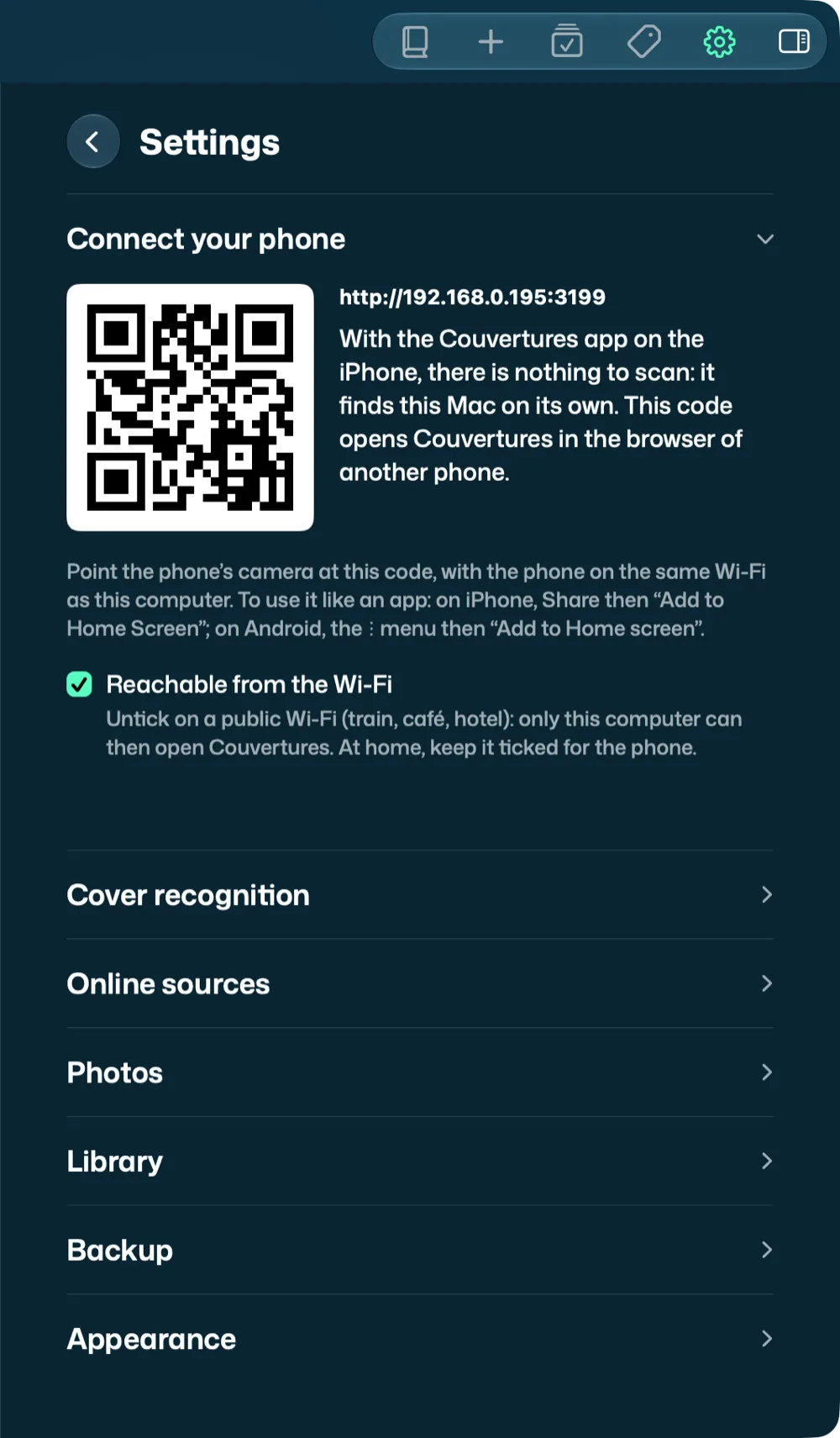
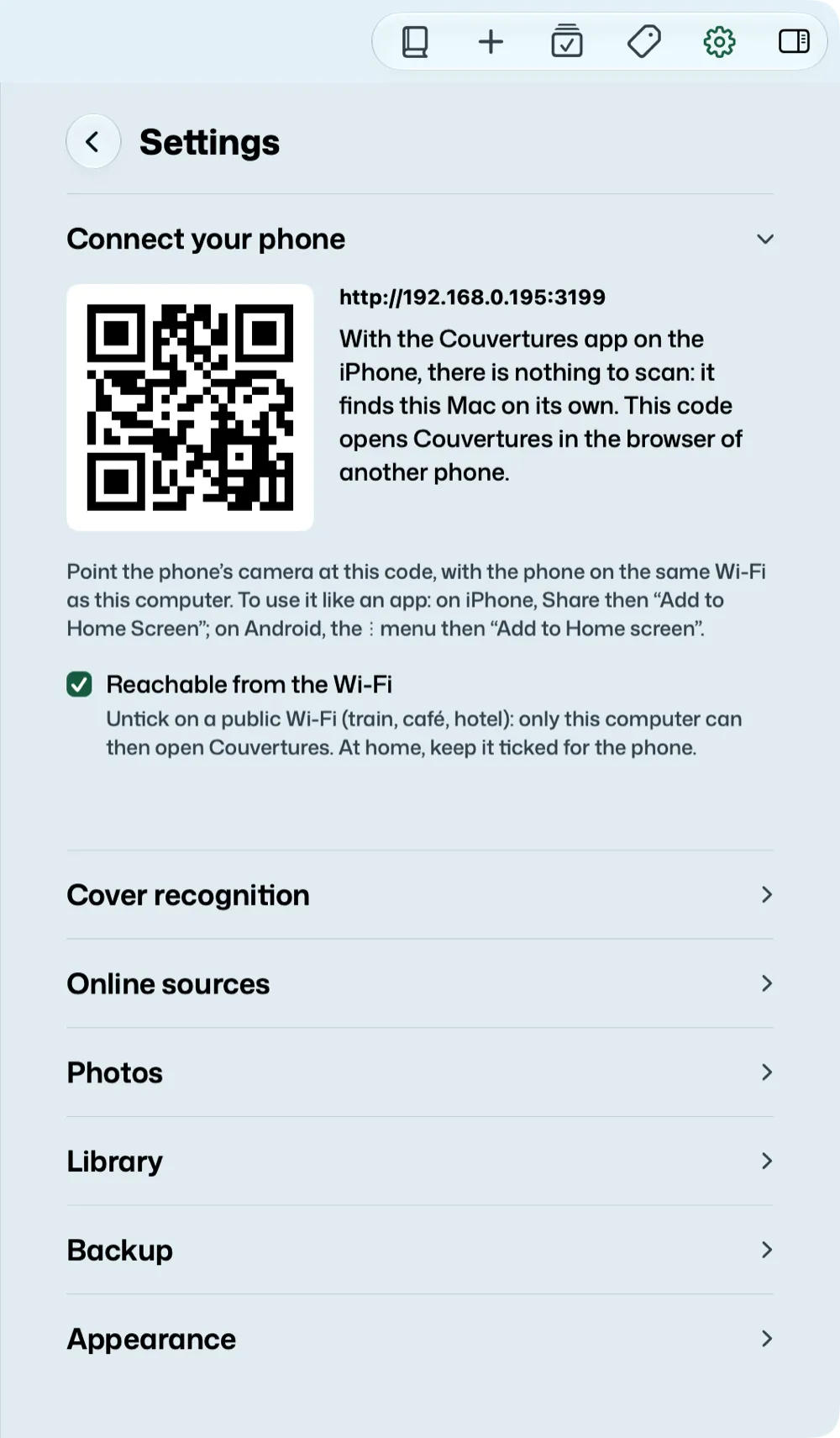
On a public Wi-Fi, untick Reachable from the Wi-Fi: other devices on the network no longer see Couvertures.
Changing places
In the iPhone’s Settings, “Where the Library Lives” says where it is, and offers Move to My Computer… or Put the Library on This iPhone…, without leaving the app. Nothing is lost: each place keeps its own library, and what is waiting to be sent to the Mac will wait. To carry the books from one to the other, go through a backup:
- From the Mac to the iPhone: on the Mac, back up to iCloud Drive (Settings > Backup); then on the iPhone, tap Couvertures Mac in the Files app (or Settings > Backup > Restore a Backup…).
- From the iPhone to the Mac: on the Mac, double-click Couvertures iPhone, in iCloud Drive › Couvertures (or File > Open a Backup…).
To keep the same library on the iPhone, the iPad and the Mac, rather than move it once, turn on sync on each one. The question that confirms the change of place says so: rather than moving to the Mac, keep the library on the iPhone and turn on Settings > Sync, on the iPhone and on the Mac.
AI, if you want one
For most books the barcode is enough: Couvertures reads it itself and finds the exact edition. An AI helps with books without a barcode (before the 1970s), whose cover it reads, with the case of a movie or the sleeve of an album, and to understand dictated titles.
In Settings (on the Mac, or on the iPhone when the library lives there), “Cover recognition”: No AI, Claude, OpenAI or Ollama (on your own Mac, nothing leaves it). For Claude and OpenAI, paste your key, then “Test the connection”. Count a few cents per hundred covers. This key comes from an API account, at Anthropic or OpenAI, with a little credit: a Claude or ChatGPT subscription is not enough. To create the key, or install Ollama, step by step: Setting up an AI.
With Ollama, you need a vision model, which can read images, such as qwen2.5vl:7b: a text
model, such as llama3.1, cannot read covers. “Test the connection” tells you.
At the start, Claude is chosen, with no key. Until it has one, Apple Intelligence reads the photo of a cover, on the device, when the device has its model (iOS 27 or macOS 27, with Apple Intelligence turned on): the photo does not leave the device, and its reading is to be checked (see Setting up an AI). Without that model, Couvertures works as without an AI: barcodes work just the same, and for a photo of a cover, Review says “Type the title”: you type it and Couvertures looks for the rest. If you want no reading at all, choose No AI.
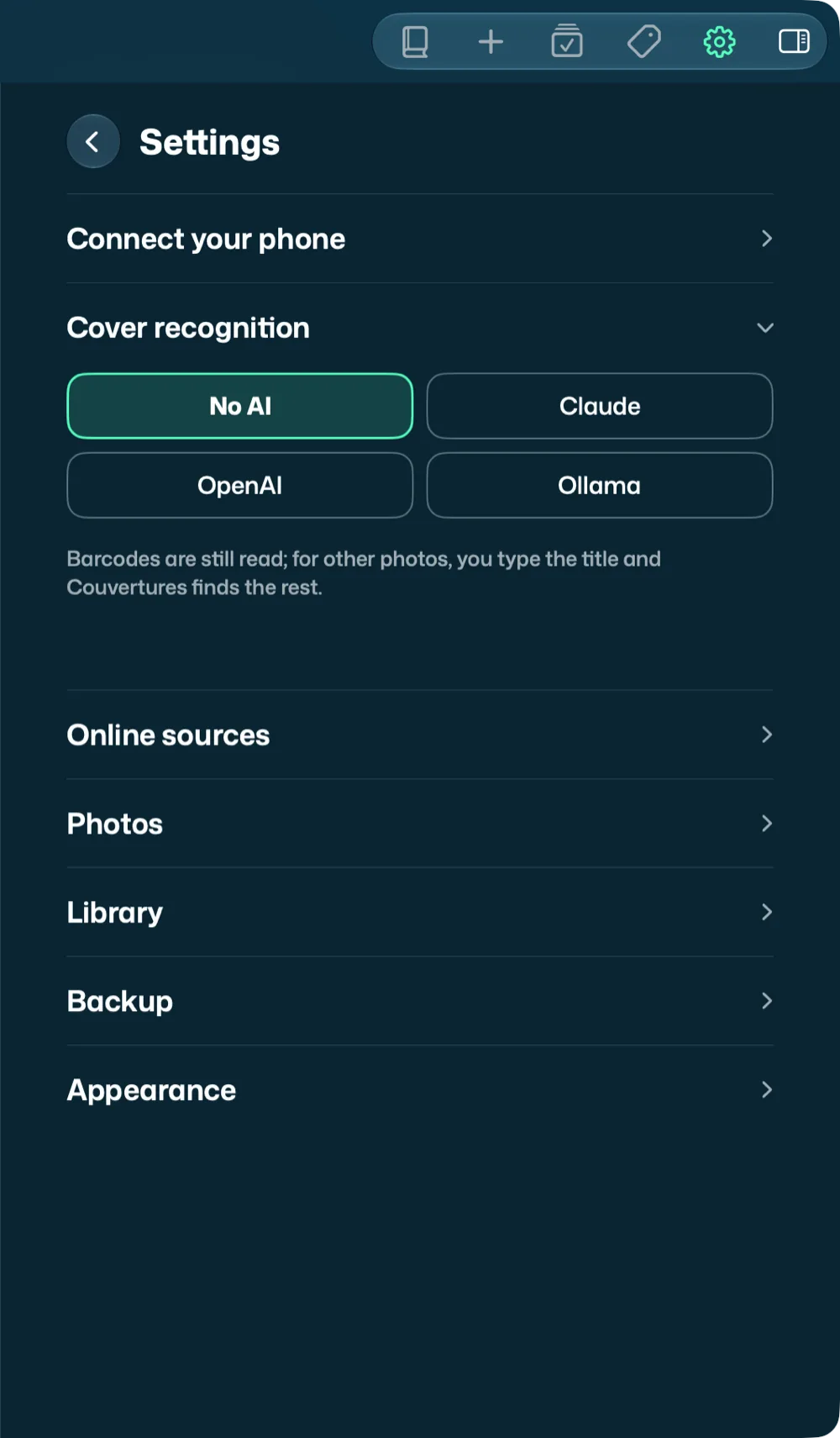
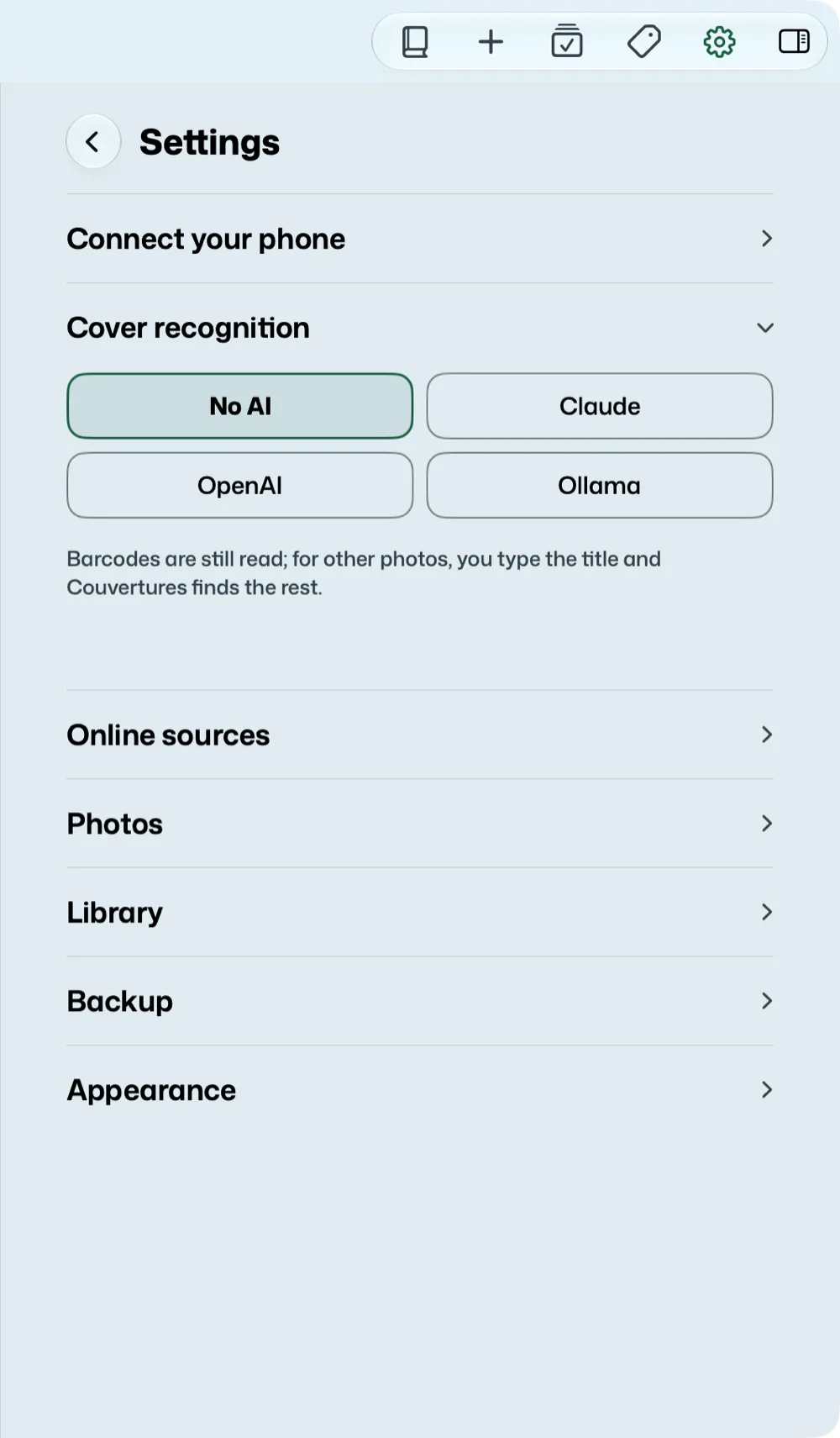
“Online sources” chooses where Couvertures looks for editions: Google Books, Open Library, the BnF catalogue; and the language of most of your books, to prefer the right editions. Google Books is off at the start: without a key, its shared quota is reached straight away. A key in “Google Books key (optional)” turns it on (“Turns on Google Books, overloaded without a key”) and gives you your own quota. Without it, outside France, Open Library is often the only one to answer, and some books are not found: see Troubleshooting. For discs, Couvertures also looks, with nothing to set up, in MusicBrainz (albums) and at TMDB (movies): see Discs.