
Browsing the library
The covers, the filters, the reserve, sorting, rows, "Rediscover".
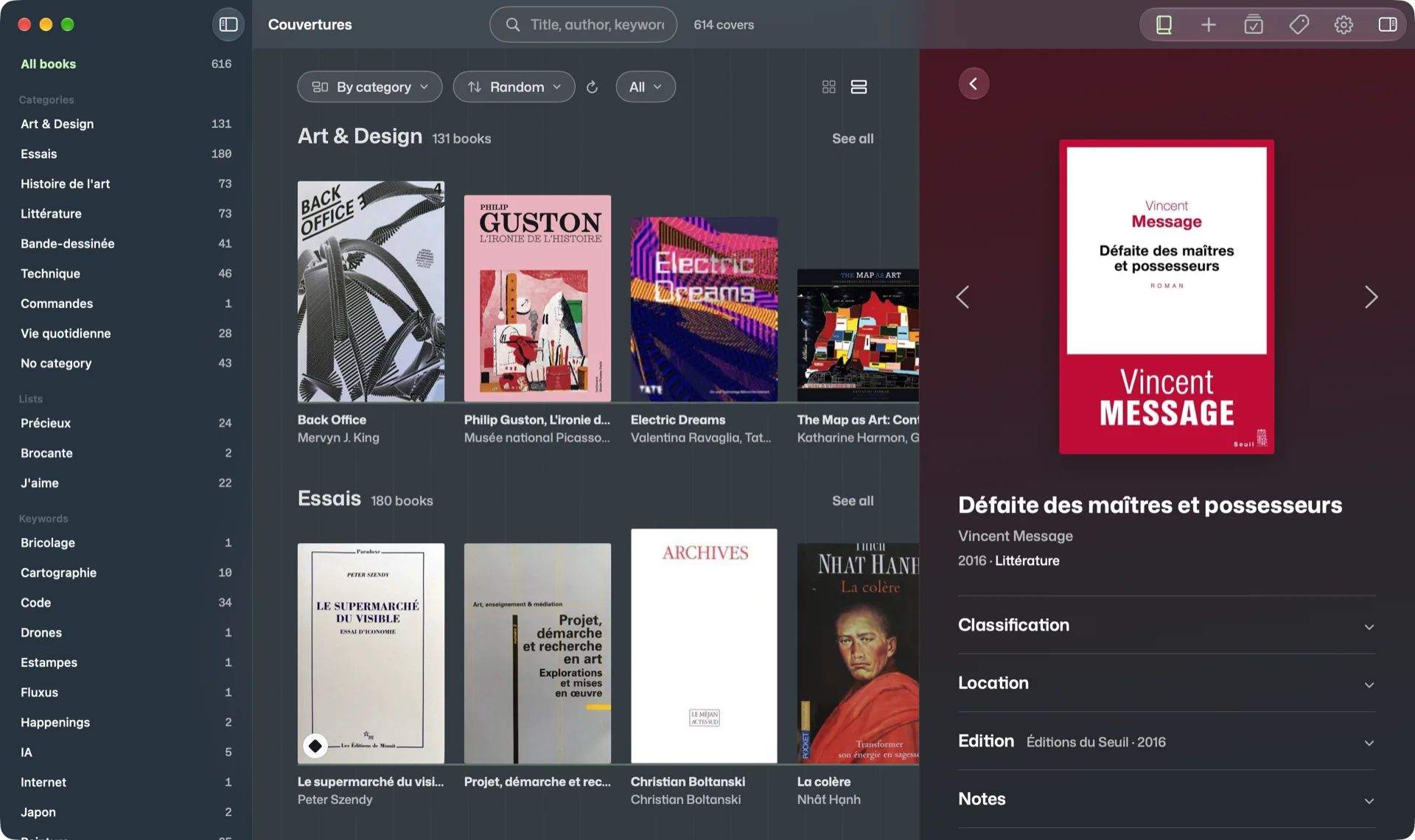
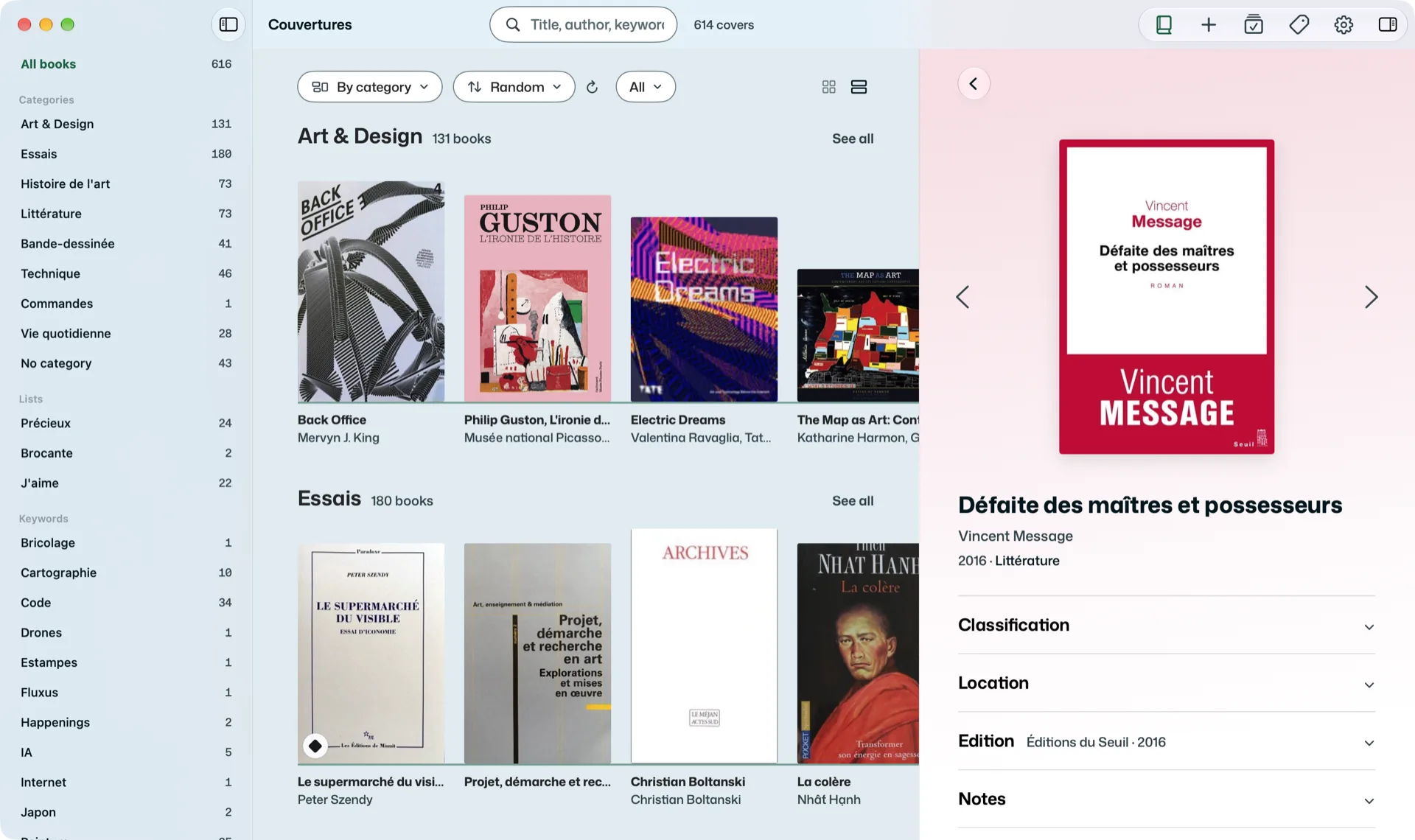
Your books by their covers. On the Mac, the whole window: the filters on the left, the library in the middle, the panel on the right. On the iPhone, the Library tab. On the iPad, the library fills the screen; the icons at the top right open Add, Review, Classify and Settings in a panel on the right, where the record opens too (when the iPad shares the screen with another app, Couvertures takes the iPhone’s layout there).
Searching and filtering
- Search: the field at the top (⌘F on the Mac) searches everywhere, title, author, year, keyword, location, notes, summary. On the iPhone and the iPad, scrolling the results puts the keyboard away; the search stays open, tap the field to bring it back. The number of books shown is above the books (“12 books of 34” once filtered).
- One kind at a time: with magazines or discs, on the iPhone and the iPad, a glass bar replaces the title, Books | Magazines | Movies | Music (only the ones you have), to tap or slide with your finger; the number moves above the books (“24 books”, “12 books of 34”). The search starts from the kind shown (“Search Music”); during the search, the bar gains All, to search the whole library, and when you close the search you are back on the kind you had. On the Mac, the All menu, next to Sort, shows everything or a single kind. See Magazines and Discs.
- Hiding a kind: Settings > Show unticks the magazines, movies or music you don’t browse; their bar goes with them. Still find them when searching keeps them in the results, so you know whether you already have it. This setting belongs to each device.
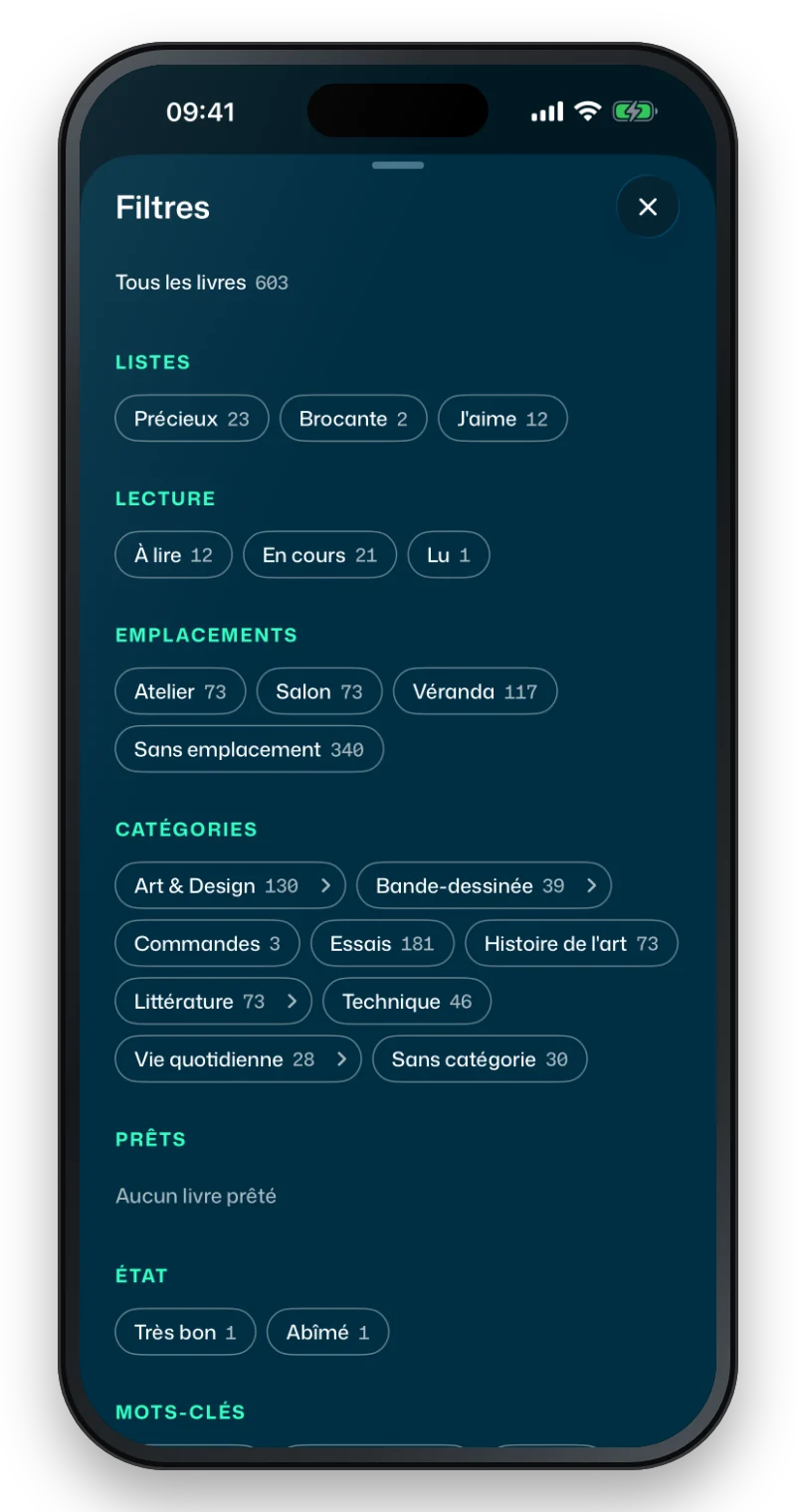
- Filter: the left column on the Mac, the Filters button on the iPhone. By list, reading (To read, Currently reading, Read), location, category and subcategory, loan (lent out, at home), condition, keyword. The chosen filters show above the books, each with its cross; All books (at the top of the column) or Show all removes them all. The filters follow the kind shown: in Music, they only count the CDs, All books becomes All Music (or All Movies), and reading becomes Listening (or Watching).
On the Mac, you arrange the column by hand: drag a list, a location, a category, a condition or a keyword higher or lower, and the order is kept (⌘Z undoes it). On right-click, Rename… and Delete… open the value in Classification, which says how many books are affected before changing anything.
The reserve
Books you keep without wanting to come across them every time (the box for sale, flea-market finds, a category that no longer speaks to you) can be set aside without deleting anything. A category, a subcategory, a location, a list, a condition or a keyword can be put in reserve:
- On the Mac, when you hover over its line in the left column, an eye appears: click it. Right-clicking the line also offers Put in reserve.
- On the iPhone and the iPad, in Filters, a long press on the filter, then Put in reserve.
Its books then leave the library, search and “Rediscover”. The line stays in the filters, paler, with the eye crossed out: choosing it shows its books. Take out of reserve (the crossed-out eye, the right-click or the long press) brings them back everywhere. The books themselves don’t change; the reserve follows Classification (a renamed value stays in it) and travels with sync. A book you confirm into a value in reserve doesn’t show, and the banner says so: “Flea market” is in reserve.
Grouping and sorting
On the Mac, above the books; on the iPhone and the iPad, in the Sort menu, top right:
- Group: no groups, by location (the contents of each box), by category, by list, by keyword. A book with two keywords is in both groups.
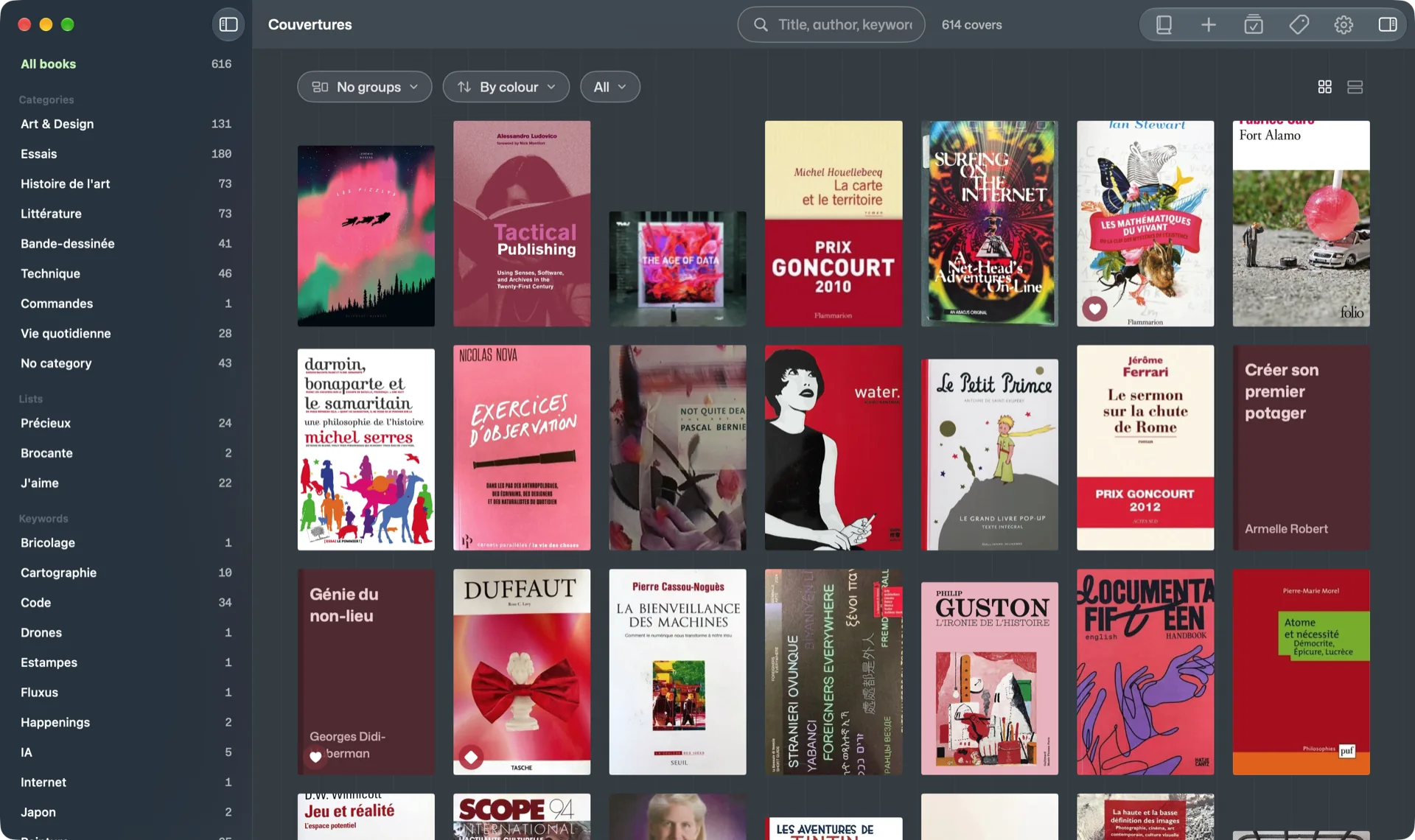
- Sort: random (the default: the library is reshuffled every time the app opens, to stumble on forgotten books), recently added, and by colour, which turns the library into a gradient. The Mac also sorts by title, by author and by year; on the iPhone and the iPad, a title, an author or a year is found with the search. Switching to another sort and back to “Random” keeps the same order.
- Shuffle again: on the Mac, the arrow next to Sort (or View > Shuffle Again); on the iPhone and the iPad, pull the library down, or Sort > Shuffle Again, which goes back to the top. It works away from the Mac too.
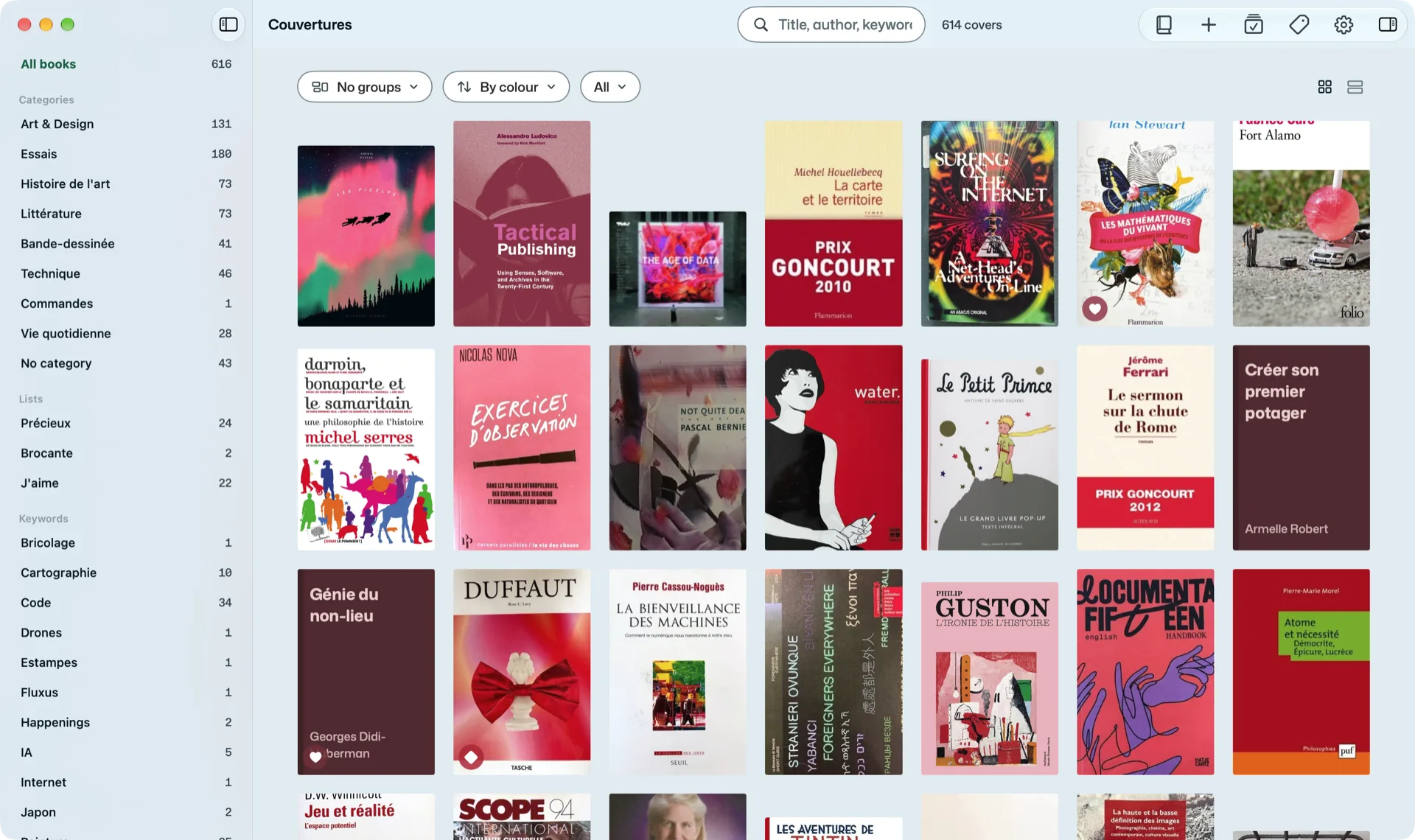
Grid or rows
On the Mac, two buttons at the end of the Group / Sort row. As rows, one row per group, scrolling sideways: with the arrows that appear at the edges, by dragging the row, or on the trackpad. See all, at the end of a row’s title, shows the whole group as a grid. On the iPad, Sort > Layout > As Rows: they slide under your finger, and the library goes back to a grid to select.
The size of the covers changes by pinching on the trackpad, or with View > Larger Covers (⌘+) and Smaller Covers (⌘−). On the iPad, pinch the library, or tap the size icon at the top right. The space between books is set in Settings > Appearance (or ⌥⌘+ and ⌥⌘−). View > Covers Only removes titles and ledges; View > Default Size and Spacing goes back to the start.
On a cover
On the Mac, on hover, buttons appear at the bottom of the cover, in circles of the book’s colour (white on a white cover). Bottom left: the diamond, which puts the book in the “Precious” list (⌘D), the heart, in “Loved” (⌘L), and Share, which makes images of it (The record). Bottom right: the magnifier, which enlarges it over the dimmed window (⌘Y or Space; a click or Escape closes it), and ”…”, the book’s menu. On a small cover, the magnifier gives up its place. Another click on the heart or the diamond takes the book out of the list. Without hovering, and on the iPhone, a precious or loved book keeps its diamond or heart, bottom left; on hover, the other buttons push it into its place.
A click opens the record on the right (on the iPhone, tap the book); a lent book shows “lent to” and the person’s name under its title.
Rediscover
On the Mac, when no book is chosen, the right panel invites you to rediscover the shelf on display: a book drawn at random in the showcase (“Another one” for the next, “Open the record”), two invitations (a series, an author, a category, a list, a keyword; “Show these books” filters on it), and the latest arrivals. The draw changes every time the app opens; the round arrow at the top right makes another one right away.


Back to top
As soon as you have scrolled down a little, a round button with an arrow appears at the bottom right: it brings you back to the top of the library. On the Mac, books added from the iPhone arrive on their own, and View > Refresh (⌘R) reloads everything without waiting.