
Several books at once
Select books as in the Finder, then file, share, export or delete them in one move.
On the Mac, selection works as in the Finder, with no separate mode:
- Click a book; ⌘-click adds one or removes it; ⇧-click takes all the books between the last clicked and this one.
- Rectangle: drag from a space between the books; with ⇧, in addition to the selection; with ⌘, it inverts. Near the top or bottom, the library scrolls.
- ⌘A (Edit > Select All) takes all the books shown: filter first, a box or a category, then select all. A click between the books, or ⌥⌘A, deselects.
The selection panel
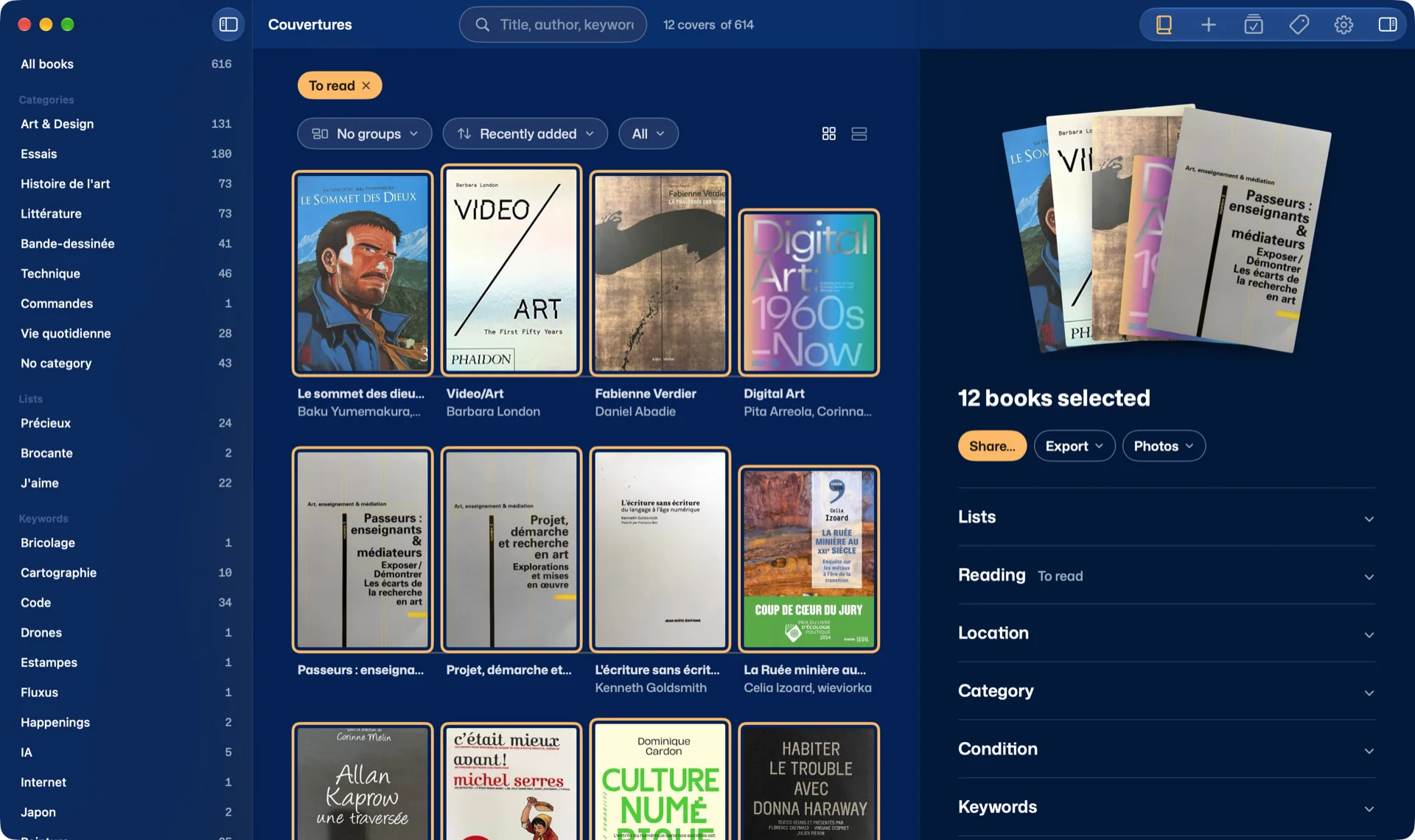
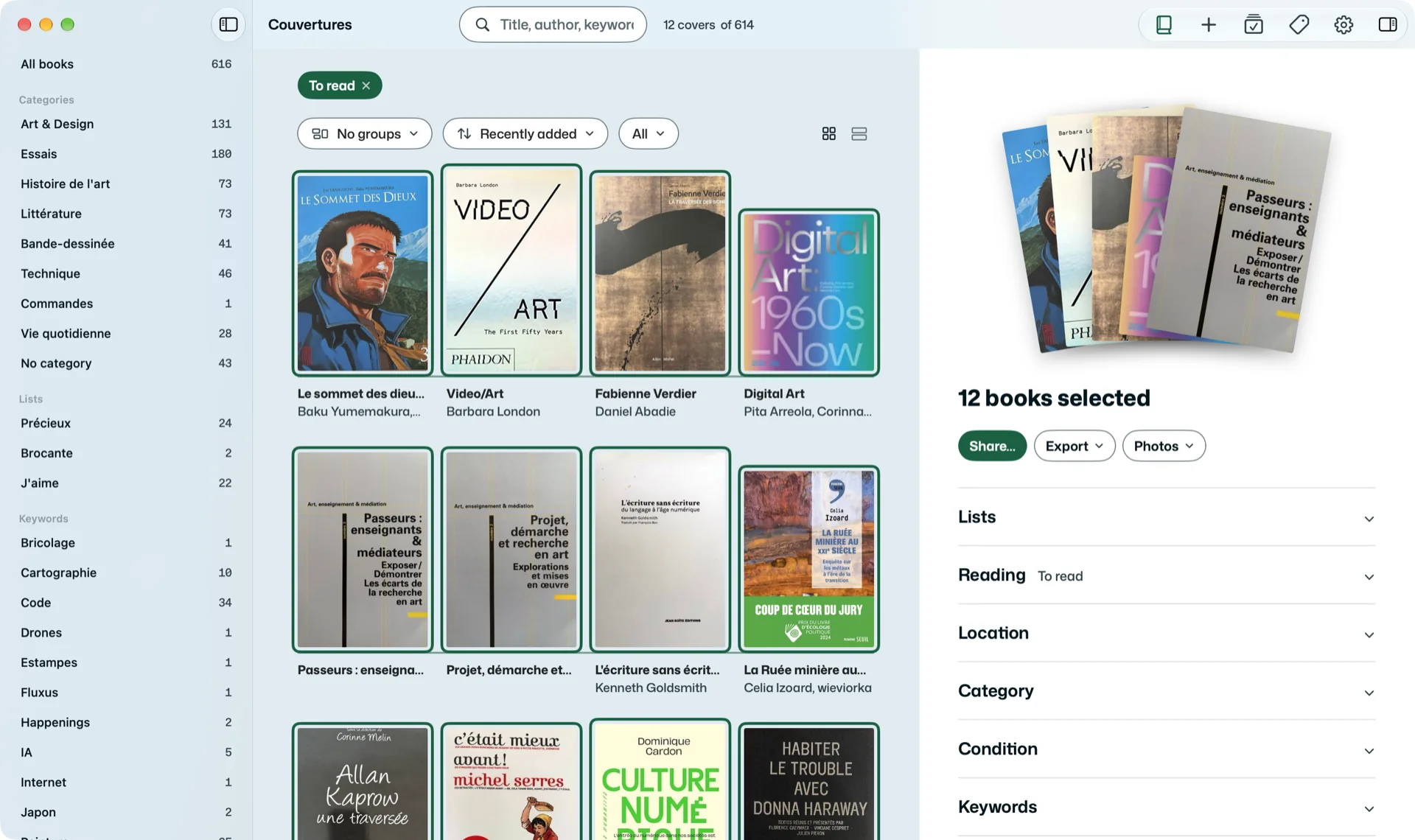
As soon as several books are chosen, the right panel shows them fanned out, with their number. First, highlighted, Share… makes images of them (below). Then two menus:
- Export: these books only, as CSV, JSON or in Goodreads format.
- Photos: correct the lighting, back to the original lighting, re-analyse. Re-analysing reads the photos anew and looks the edition up again; the proposals arrive in To review and change nothing without your say.
Then one folded section per kind of classification: Lists, Reading, Location, Category, Condition, Keywords. Open, it shows its values as pills: a click gives the value to all the chosen books; when they all have it, another click takes it away. The small number in a pill says how many already have it. Among many values, type the start of a word to find yours; “New List”, “New Location”… create one.
At the very bottom, Delete, after confirmation.
The same actions on right-click on a book, and in the Book menu.
Dragging onto a filter
Drag a book onto a list, a reading state, a location, a category, a subcategory, a condition or a keyword in the left column: it is filed there. A chosen book takes the whole selection with it. Stay a second on a category: its subcategories appear below.
When books lose a value (they leave a category, a location), Couvertures first says how many are concerned. Then Undo at the bottom of the library, or Edit > Undo (⌘Z), even after the message has gone; Redo (⇧⌘Z).
In rows, dragging scrolls the row: file with a right-click.
Sharing several books
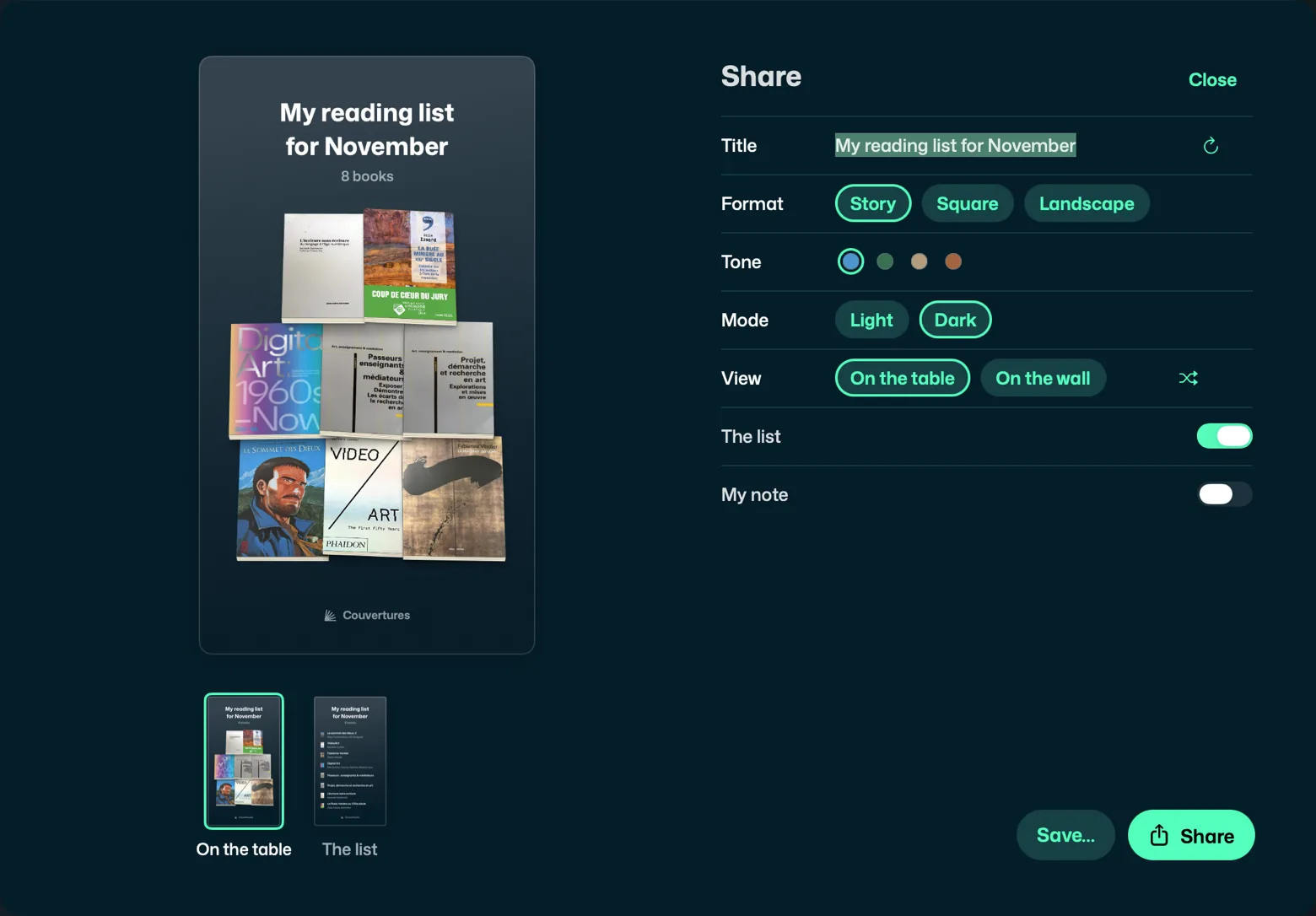
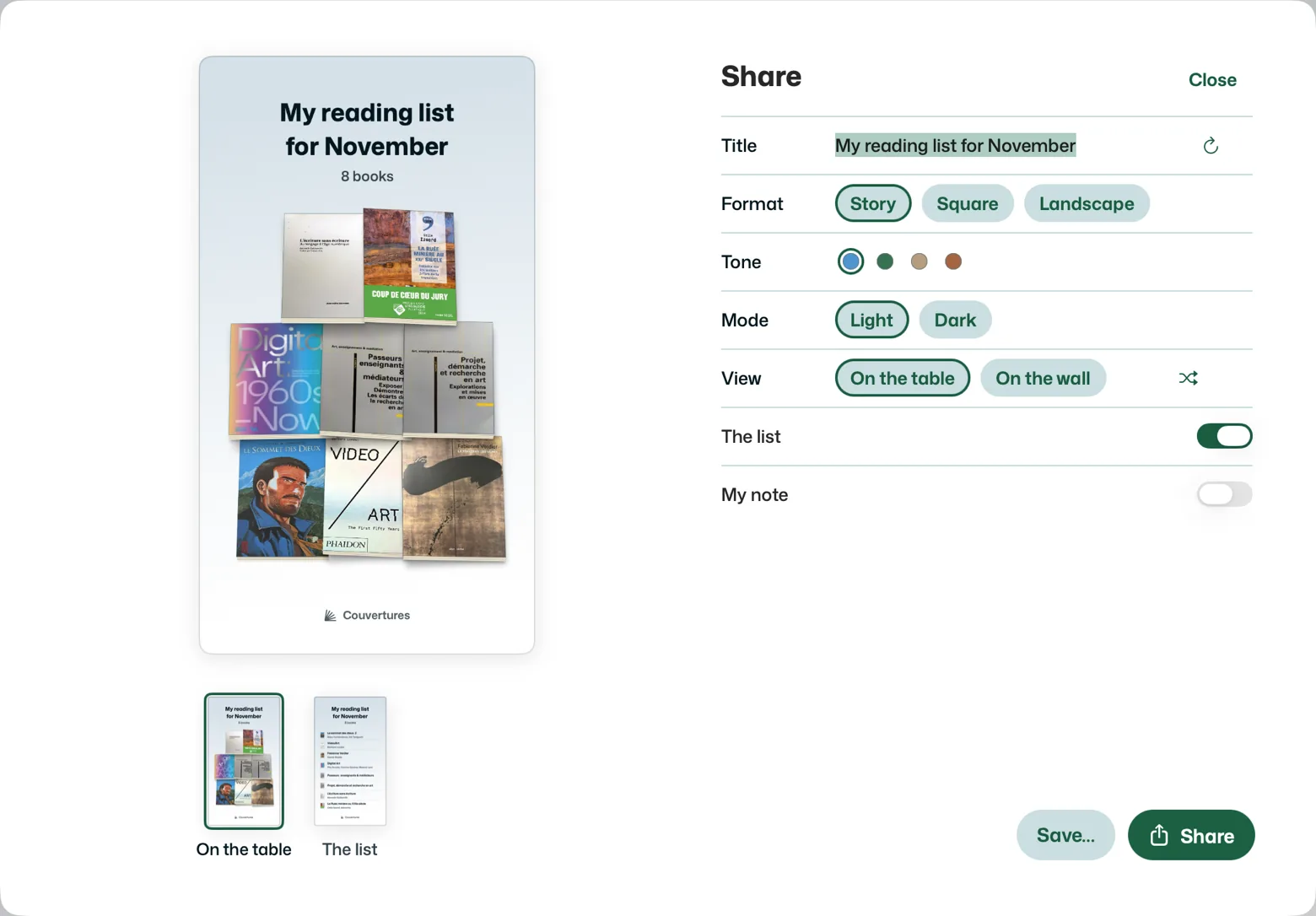
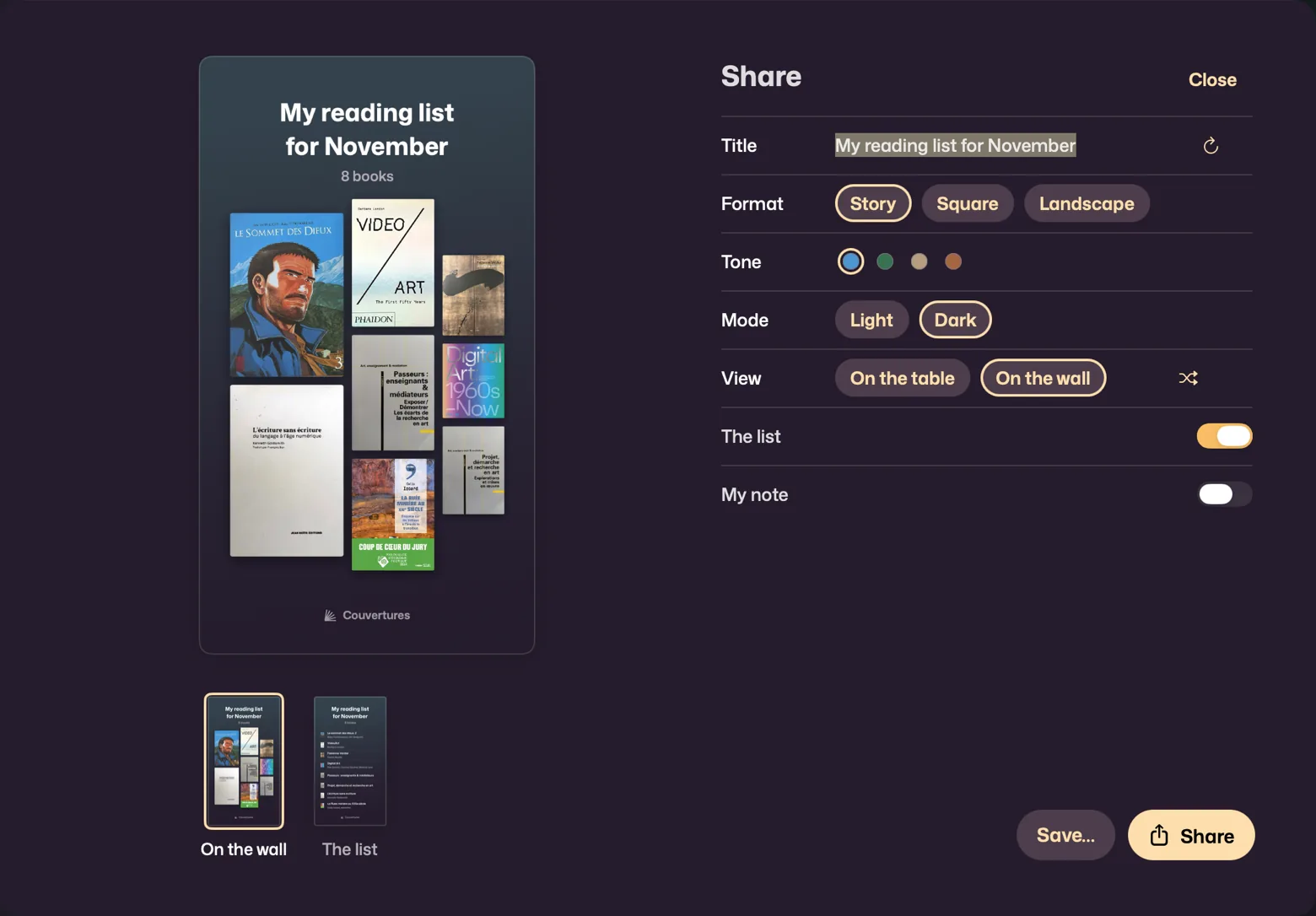
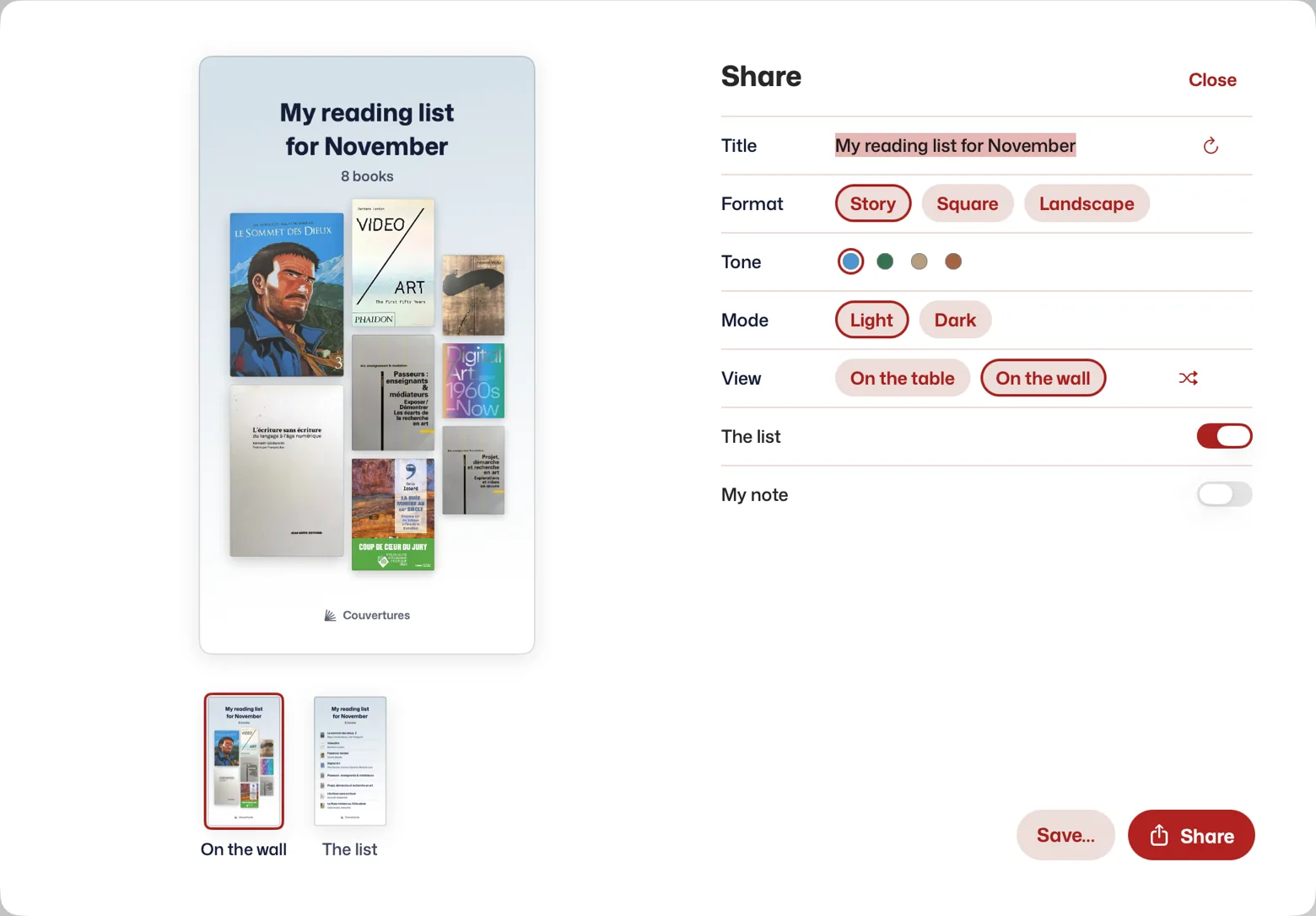
Share… makes a series of images to send together (a carousel, a story over several screens): the covers, the list of books (at most eight titles per image in Story, five in Square, ten in Landscape), then your note if you write one, to say what these books are about or why you are taking them along.
- Title: an idea is offered, the button on its right draws another; erased, the image says “5 books”, “3 albums”, “2 movies”, or “5 items” when books and discs are mixed. For albums, the ideas say “Listened to…”, for movies “Watched…”; for a mix, they say nothing of reading.
- View: On the table, the books lying on a table, some on others (a CD or a DVD lies thin there, in its case, and a CD smaller than a book, as in real life), or On the wall, the covers facing you, in different sizes.
- Tone: the colour of one of the books, for the background. Chosen on the first image, it applies to all of them; on another image, to that one alone, among the colours of its books.
- Shuffle Again: another order, until you like it; on the wall, other sizes too.
- The list: remove it if the covers are enough.
On the iPhone, the view and the format are icons above the preview; Shuffle Again and another title idea sit on the image itself, and touching the title edits it.
Beyond 24 books, the covers are spread evenly over several images: 25 books make 13 and 12. The images show 120 at most, then “and 180 more”. On the Mac, the thumbnails scroll with the mouse, the trackpad or their small arrows. The other settings, and what the banner says after sending: The record.
On the iPhone and the iPad
Select, at the top right, or a long press on a cover: a mark appears on each book, tap the ones you want. After a long press, slide without lifting your finger: everything up to it is taken; started from a book already chosen, the slide removes. Select All takes the books shown, so filter first for a category. Share, at the bottom, makes the images; Cancel, at the top, goes back to the library.
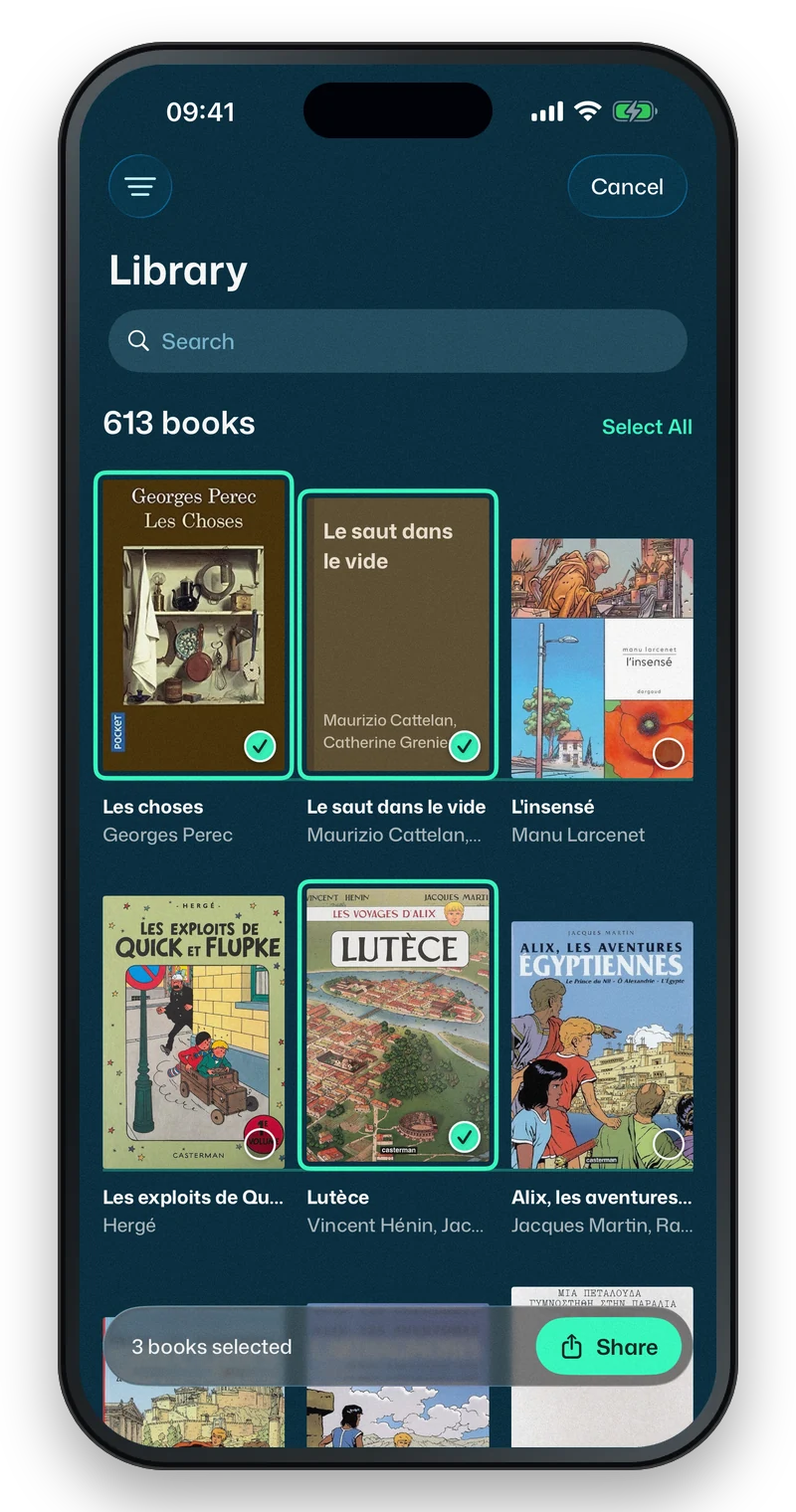
For now, selection is for sharing. Filing or deleting several books at once happens on the Mac, when the library lives on it; on the iPhone, each record is filed on its own.