
Reviewing
Each photo comes back with the recognised book: you confirm, correct or search yourself.
Each photo, barcode or dictated title gives a card with the book, magazine, movie or album Couvertures thinks it has recognised. The cards wait in Review (the iPhone tab) or To review (the panel icon on the Mac, ⌘2). A red badge counts the photos to review and those still being analysed: on the tab, on the panel icon and on the Dock icon.
With sync, photos taken on your other devices arrive here too, once analysed; confirmed or removed on one, a card leaves the others.
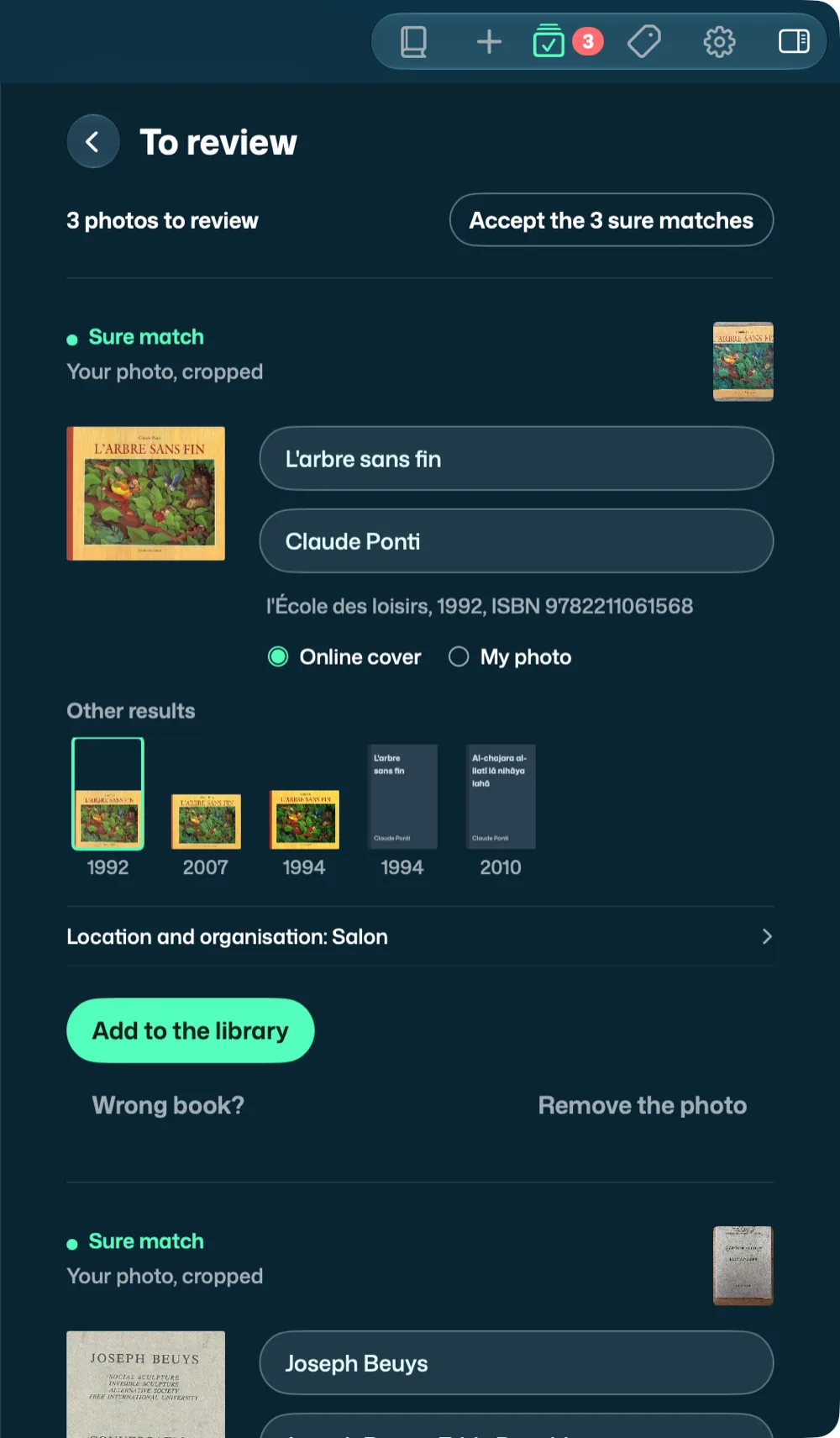
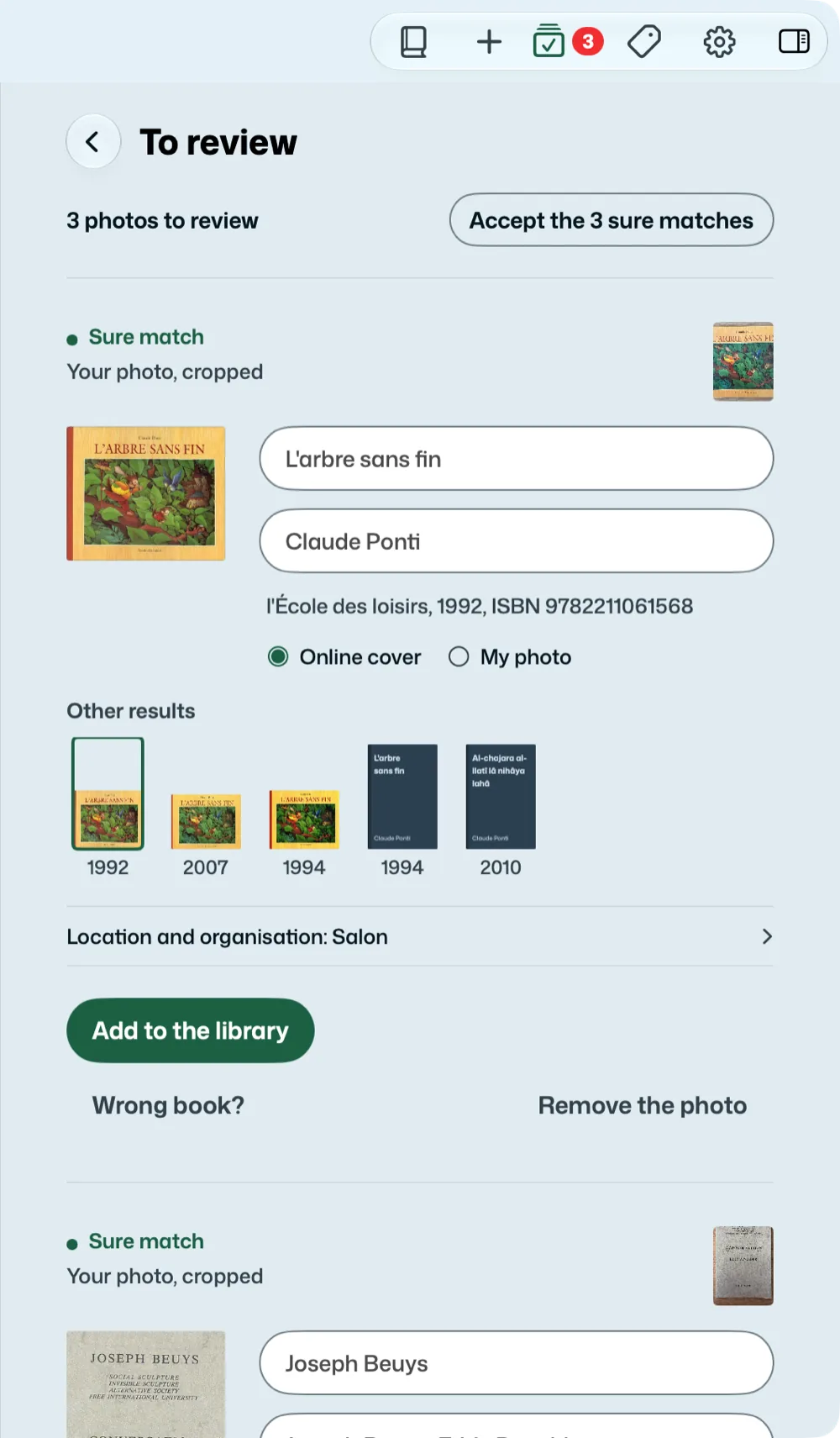
At the top of the page
The number to review (“12 books to review”; “items” when there are discs), the photos still being analysed, and two buttons when they are useful: Accept the sure matches adds all the sure cards at once; Search again retries the cards for which an online source had not answered.
If you re-analysed books already filed, a line says so, with Drop this analysis: after a question, these books leave Review at once and their records stay as they are. What you have already accepted stays accepted, and the photos of new books stay.
A card
At the head, the verdict, with a coloured dot in front of it (green, orange or red):
- Sure match: you can add it without looking.
- To check: compare the title and the cover. “Other results” offers other editions; at the end, None, a dotted cover (“Or”, when there is only one result), is for when none of them matches, for a rare magazine or a book no catalogue knows. The suggested edition (author, publisher, year, ISBN) is cleared; the title read, your photo and the classification stay, and you fill in the record yourself. The verdict becomes “No result kept: fill it in yourself”. Tapping a result goes back on your choice.
- Type the title: the book was not recognised, or the barcode is in no catalogue. Type its title, then “Search”. The verdict says where the card comes from: “Barcode read, book not found online: type the title”, “Movie not found online: type its title”…
- Read from the cover, not found online: the AI read a title, no catalogue knows it. You can keep the record as it is, with your photo.
- No network: the search will start again by itself: nothing is missing, the card waits. On the iPhone, the search starts again on its own when the network comes back.
Below, where the book comes from (the barcode and its ISBN, the cover read, dictation) and your photo as a thumbnail on the right: a click enlarges it.
Then the cover found (for a movie, its poster), the title and the authors, which you can correct. The cover arrives with a little bounce when the search finds it; a book found without a cover has a round arrow, Search for the cover again. Next, the cover to keep: the online one, or “My photo”; and “Location and organisation”, folded, to change for this book only what was chosen for the batch. Under its fields, the same suggestions and the same sparkles as in the record: the AI reads the book found, and its back cover if you photographed it, and suggests three keywords, only if you ask.
The buttons: Add to the library puts the book in the library; Wrong book? (Wrong disc?) opens a search (title, author or ISBN); Remove the photo (Remove for a barcode or a dictated title) discards the card.
On the iPhone and the iPad, the card of a scanned book offers Photograph the cover (Photograph the case for a DVD, the sleeve for a CD), in plain view when no cover was found online; once the cover is there, or for a photo already taken, the button becomes Back cover. Both open the same screen, the cover then the back (see The back cover). The cover is shown straightened; Crop adjusts it (and Correct the lighting brightens it) before Keep the photo. The start of the back’s text shows on the card; it goes to the record with the book.
When you accept the last card, the iPhone goes back to the library: the book’s row at the top of the screen, the book circled for a moment. If a filter was hiding it, it is removed.
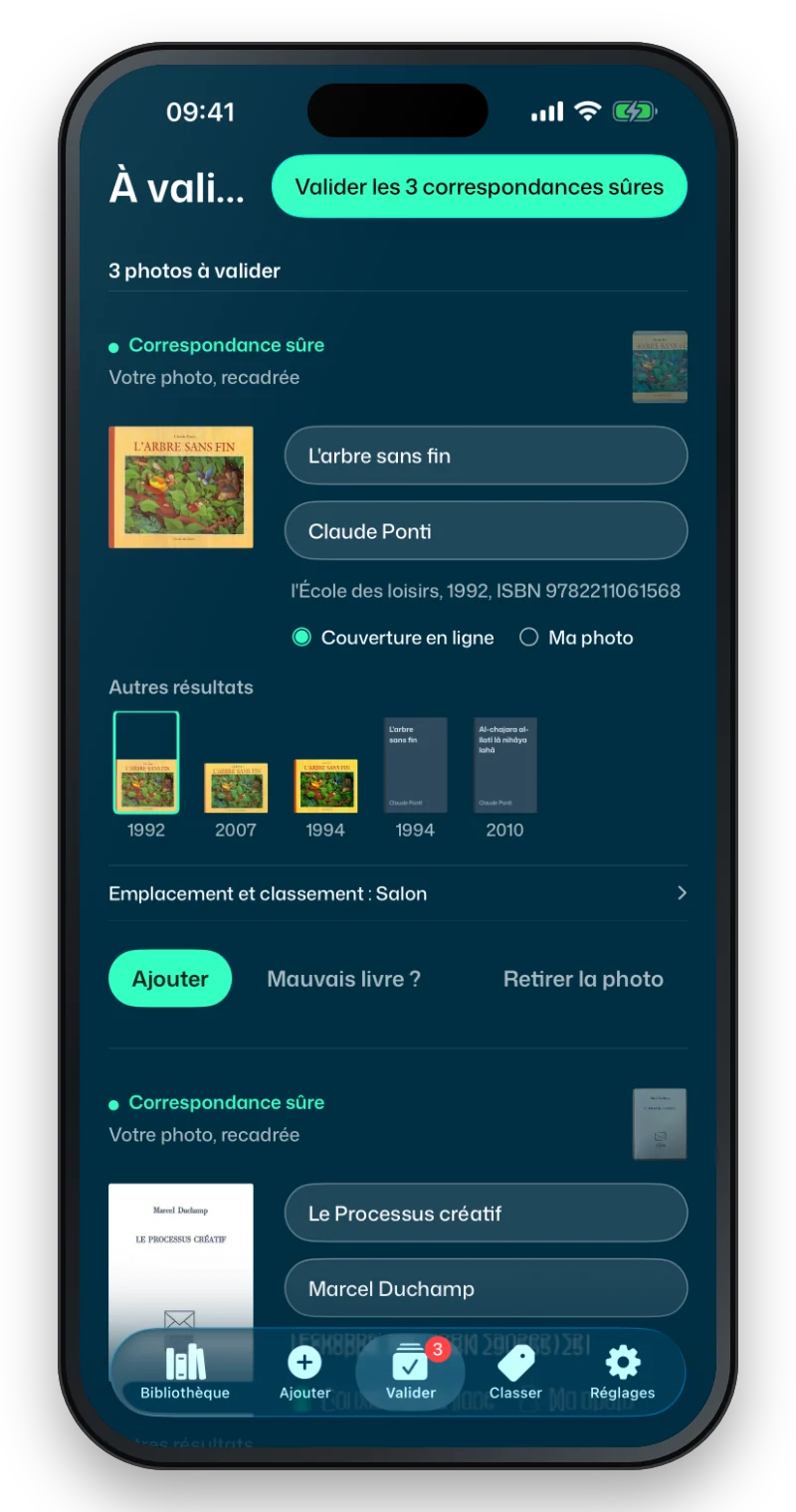
Barcodes with no result
A barcode that no source knows does not keep its card at the top: these codes gather at the bottom of the page, “3 barcodes with no result”. Search again looks them up again; Open shows their cards, to type a title; Remove… takes them all away, after a question: they leave Review, nothing is added to the library. For a disc, a photo of its sleeve is often enough: see Discs.
A book you already own
If the book is already in your library, the card says so. Add it anyway for a second copy; the copies show up in Duplicates.
When analysis fails
“Analysis failed”: the AI did not answer, or its key no longer works (with no AI and no Apple Intelligence, the card simply waits for its title). “Open the settings” leads to “Cover recognition”; “Retry the analysis” reads the photo again. “The AI did not recognise anything in this photo”: type the title. “Source unavailable”: a catalogue did not answer; the others have often found the book anyway, and “Search again” completes it later.