Backing up and exporting
Automatic backup (Mac and iPhone), restoring a backup, CSV, JSON and Goodreads exports, the data folder.
The data folder
On the Mac, your library is a folder: the database, your photos, the covers, the photos of your magazines’ contents pages. File > Show Data in Finder shows it; Change Data Folder… opens another one, for instance to pick up a library copied from another Mac. On the iPhone, the library stays inside the app: its copy is the backup, below.
Do not put this folder in a synced folder (iCloud Drive, Google Drive, Dropbox): these services cannot copy a database in use, it can get damaged. Keep it on the Mac, and back up to the synced folder, below. Couvertures warns you if that is the case.
To have the same library on several devices, use sync: it goes through iCloud Drive too, but without putting the database there. In iCloud Drive › Couvertures, the “Synchronisation” folder is its own: leave it alone, and don’t mistake it for a backup.
Automatic backup
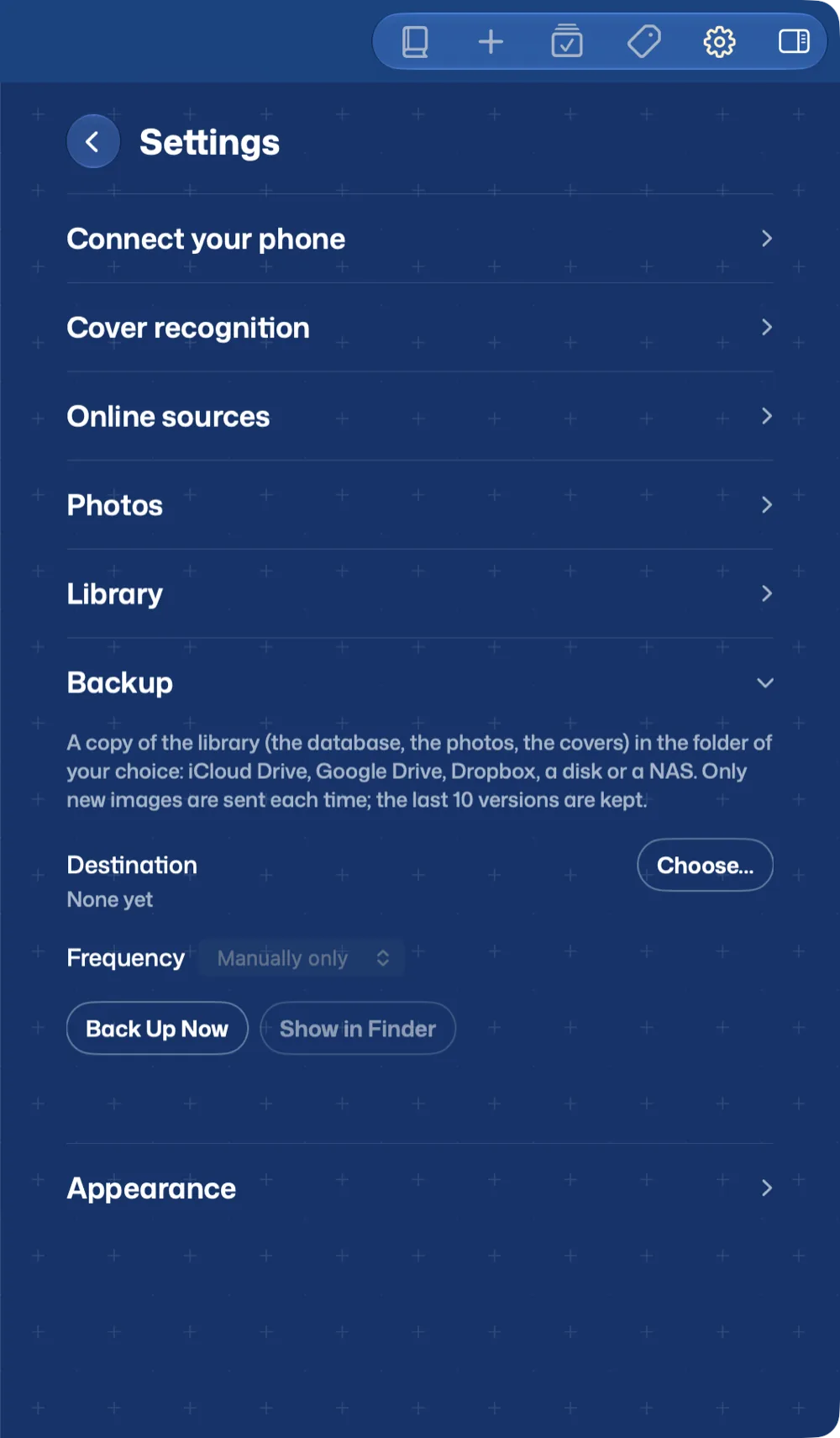
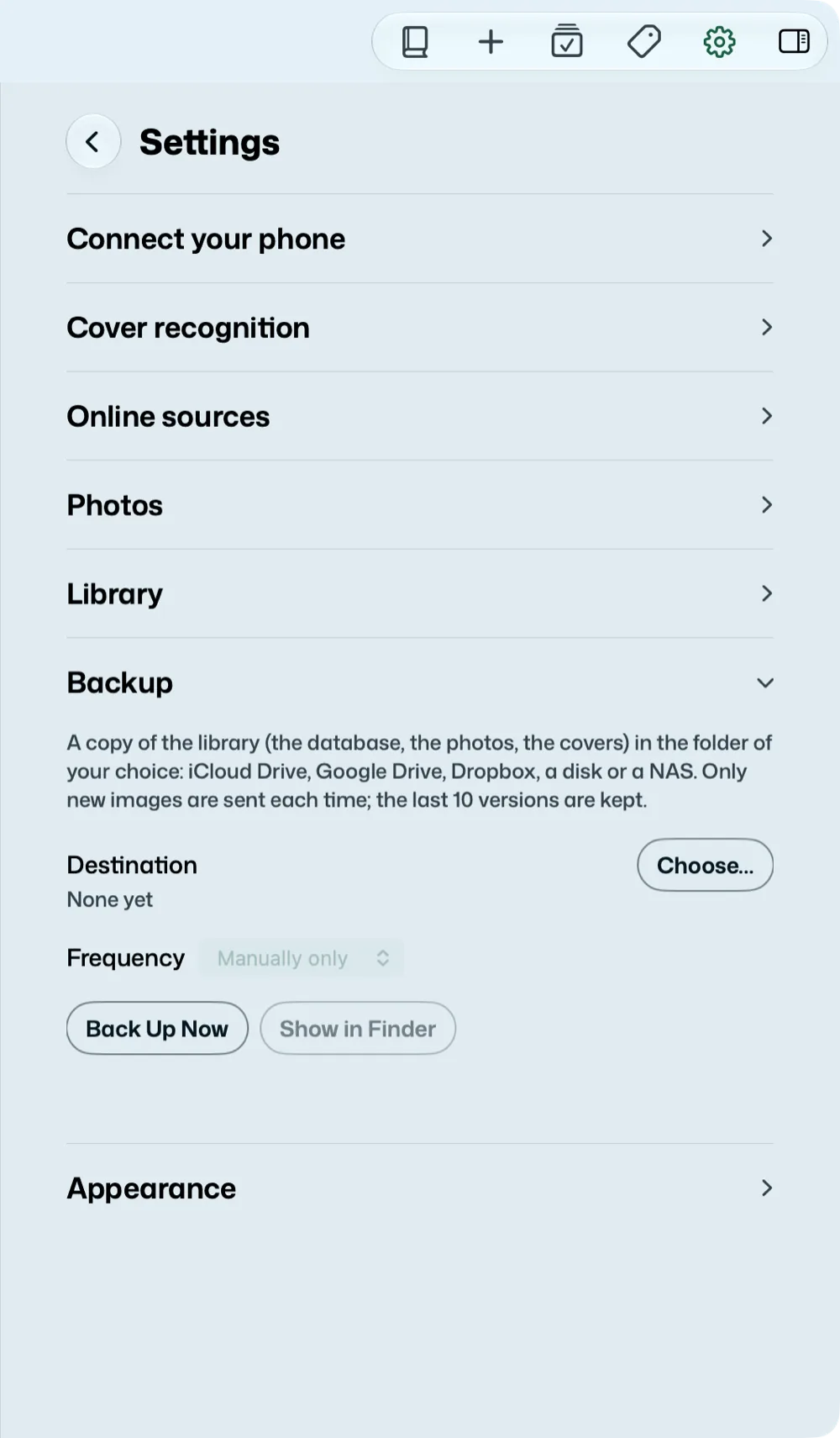
In Settings, “Backup”: a copy of the library in the folder of your choice, iCloud Drive, Google Drive, Dropbox, a disk, a NAS. Choose the destination and the frequency: manually only, every day, every week or every month; Back Up Now does not wait. Only new images leave each time; the last ten versions of the database are kept. The date of the last backup and the number of books show below.
Couvertures keeps its backup there, Couvertures Mac: a single file with the app’s icon, like a document. It is really a folder, which itself opens as a library (Change Data Folder…); seen from a PC, it looks like one. A folder from an earlier version, “Couvertures” or “Colophon”, becomes it at the next backup, its versions kept. File > Restore a Backup offers the kept versions: the chosen version is copied into a new folder on the Mac and opened, without touching the current library.
The iPhone’s backup
When the library lives on the iPhone (or the iPad), it backs itself up: in Settings, “Backup”, a copy of the library (the database, the photos, the covers), made again when you leave Couvertures after a change. At first, the destination is iCloud Drive, in a “Couvertures” folder that the Files app shows: nothing to set. The backup is a single file there, Couvertures iPhone (or Couvertures iPad): each device has its own, and the Mac’s can sit next to it without mixing. Choose Another Folder… picks another one in Files; Back to iCloud Drive returns to it. Back Up Now does not wait. As on the Mac, only new images leave and the last ten versions are kept; the date of the last backup and the number of books show below.
If iCloud Drive is not available (no iCloud account, or iCloud Drive turned off in the iPhone’s Settings), the section says so: choose a folder.
Restoring a backup
A backup opens on another device: the iPhone’s on the Mac or on a new iPhone, the Mac’s on the iPhone.
- On the iPhone or the iPad: Settings > Backup > Restore a Backup…, then tap the backup in Files (Couvertures iPhone, in iCloud Drive › Couvertures; Couvertures Mac, in the Mac’s destination). Or, simpler: tap it in the Files app, and Couvertures opens. Couvertures gives its date and number of books before doing anything (“Restore this backup?”). It becomes the device’s library; the current one is set aside, not erased. For this, the library must live on the device: otherwise, Couvertures points you to Settings > Where the Library Lives.
- On the Mac: File > Open a Backup…, then choose the backup (the iPhone’s, Couvertures iPhone, is in iCloud Drive › Couvertures); or double-click it in the Finder. The backup is copied into a new folder on the Mac and opened; the current library is not touched: File > Change Data Folder… goes back to it.
On the iPhone, the libraries set aside are in Settings, “Libraries Set Aside”, with their date, number of books and size. Reopen makes one the device’s library again (the open one is set aside in turn); Remove… erases it to free space, after saying how many books go, and “Undo”, just after, brings it back.
Exporting
On the Mac, File > Export: a CSV table (⇧⌘E), which opens in Excel, Numbers or LibreOffice; all the data as JSON; or a CSV for Goodreads, LibraryThing…, to move to another app: it also carries what you have read (to read, currently reading, read, the date of the last reading and the number of readings). Export Selection exports only the chosen books. Magazine issues keep their magazine: three columns near the end of the CSV (magazine, issue, publication date), the list of magazines and the contents in the JSON, “(mcd, #77)” in the title for Goodreads. Movies and albums show in the CSV’s last two columns: medium (dvd or cd, empty for a book) and format.
The iPhone does not export: to export a library that lives on the iPhone, open its backup on the Mac (File > Open a Backup…), then export.