The iPhone away from the Mac
What the iPhone keeps, what waits, what the two need to talk.
The Mac keeps the library; the iPhone carries a copy. This page is about the library that lives on the Mac; when it lives on the iPhone, nothing waits for the Mac: see “The library on the iPhone”, below.
What the iPhone keeps
All the library’s texts: titles, authors, organisation, locations, notes. The images, only if you ask: in Settings, “On this phone”, Keep the covers on this phone (off at first). The section says what the texts and the images weigh; once on, the covers are copied from the Mac at each connection, without slowing the library down. Turning it off erases them and says how much space was freed.
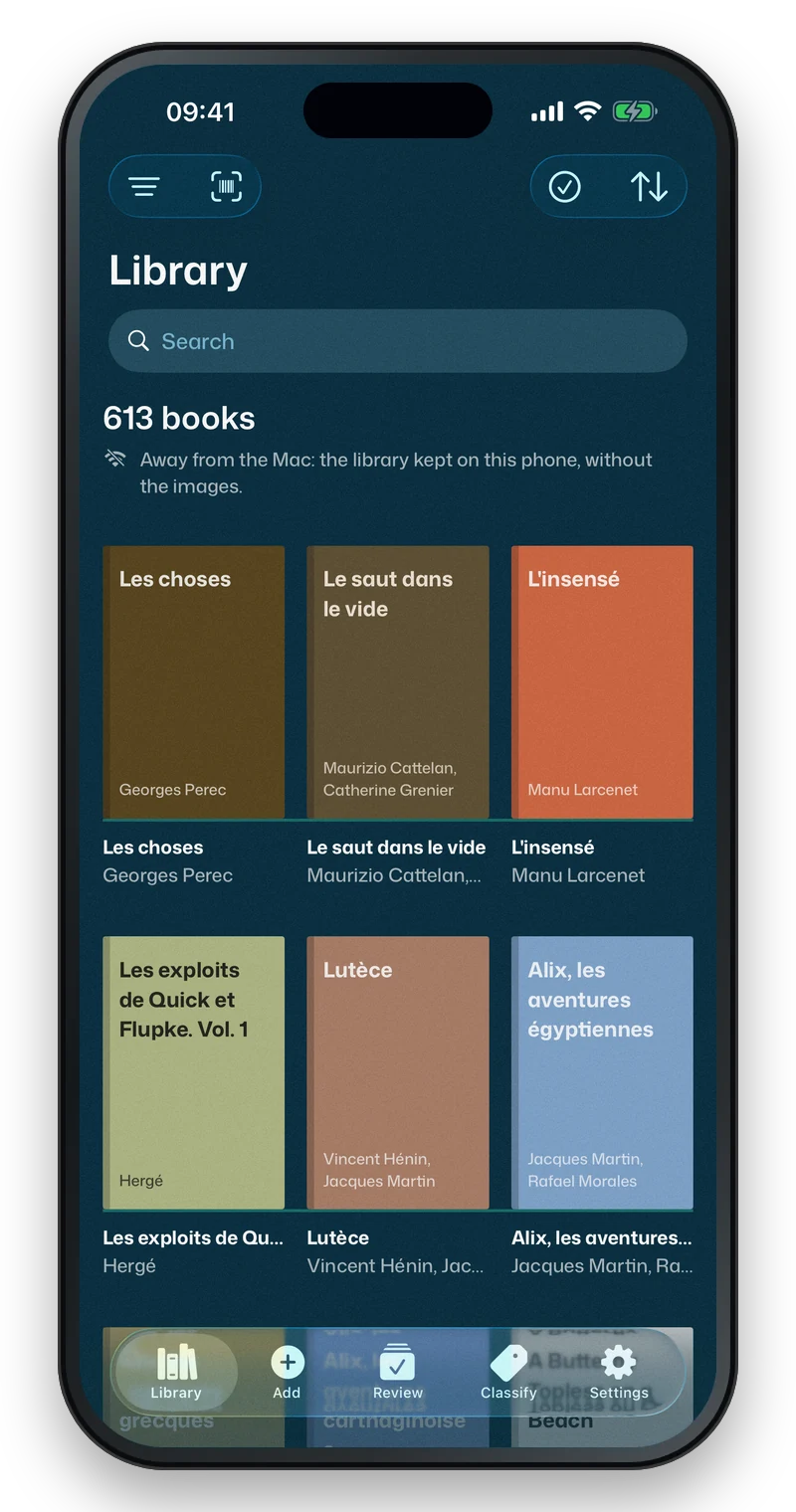
Without kept covers, the library shows stand-in covers away from the Mac, in the book’s colour, with its title, and says so under its title: “Away from the Mac: the library kept on this phone, without the images.” The records can be read and edited: see “What waits”, below.
“Do I have it?” works without the Mac: see At the bookshop.
To review waits for the Mac (“Looking for Couvertures on the Wi-Fi…”; after ten seconds without an answer, “Mac not found on this network”, with Try again: the iPhone keeps looking and reconnects by itself). In Settings, the library’s settings are the Mac’s: they come back once the iPhone has found it; Appearance can still be set.
What waits
Photos taken away from the Mac wait on the iPhone: “n photos waiting to be sent. They will go as soon as the Mac answers.” Dictated titles too. So does the photo of a record: it shows on the book straight away, with “Photo kept on this phone. It will be sent as soon as the Mac responds.”, and it only goes to the Mac you took it for. A new photo of the same book replaces the one waiting.
The scanner stays there too: barcodes wait on the iPhone, “n barcodes waiting to be sent. They will go as soon as the Mac answers.”, and their line says “Waiting for the Mac”. Swipe a line to the left to remove its code. Only “Without a photo”, which needs the Mac to look the book up, appears only when it answers.
Crop my photo works on the photo that is waiting: the Mac receives it cropped. Right after taking it, Crop also offers Correct the lighting: the photo leaves already brightened. For a photo already on the Mac, the sheet says so: “The original photo is on the Mac: you can crop it when you’re back.”
Records wait too. What you change (title, edition, classification, location, loan, notes) shows on the iPhone at once and goes on your return, field by field; Add says how many changes are waiting to be sent. Deleting a book, correcting the lighting of a photo already on the Mac, showing or removing a cover, searching online, and merging or renaming in Classification still need the Mac.
On your return
What the Mac has not touched goes through without asking. Keywords and lists are combined: what you added or removed on the iPhone applies to what the Mac has on its side.
If the same field changed on both sides, Changed on both sides opens: On this phone and On the Mac, each with its value and date, the newer one marked, and Keep this version under each. The Mac’s date is the record’s last change, not necessarily this field’s. Later closes the sheet: nothing is lost, the iPhone keeps its version, and “n choices to make”, in Add, opens it again. If the book is no longer on the Mac, the sheet says so, and OK drops the change.
What the two need to talk
- The Mac on and awake, with Couvertures open: window closed or not, but not quit.
- Both on the same Wi-Fi.
- On the Mac, in Settings > Connect your phone, Reachable from the Wi-Fi ticked.
- On the iPhone, the local network allowed: Settings > Apps > Couvertures > Local Network.
The iPhone finds the Mac by its name, even if its address has changed. It looks for it by itself when the Wi-Fi comes back and when you return to the app; pulling the library down looks for it too. On another Wi-Fi, at the home of someone who also has Couvertures, it does not connect to their Mac on its own: it offers it, and keeps your library until you choose it. If it stays on “Looking for Couvertures on the Wi-Fi…”, see Troubleshooting.
The library on the iPhone
If you put it on the iPhone, or the iPad (see Getting started), it needs no one: no Mac to find, nothing waiting for its return, and all its images stay on the device. At the top of Settings, “Library on This iPhone” and the number of books; the “On this phone” section is gone, since everything is there.
All it needs is the network, to look books up online. Without a network, a scanned book still enters Review, with “No network: the search will start again by itself”. When the network returns, the search starts again by itself.
It backs itself up to iCloud Drive, in the Couvertures iPhone file: see Backing up and exporting. Settings > Where the Library Lives switches from the iPhone to the Mac, or the other way round, without erasing anything: each place keeps its own library (to open the iPhone’s on the Mac: File > Open a Backup…), and what was waiting to be sent to the Mac still waits. See “Changing places”, in Getting started.